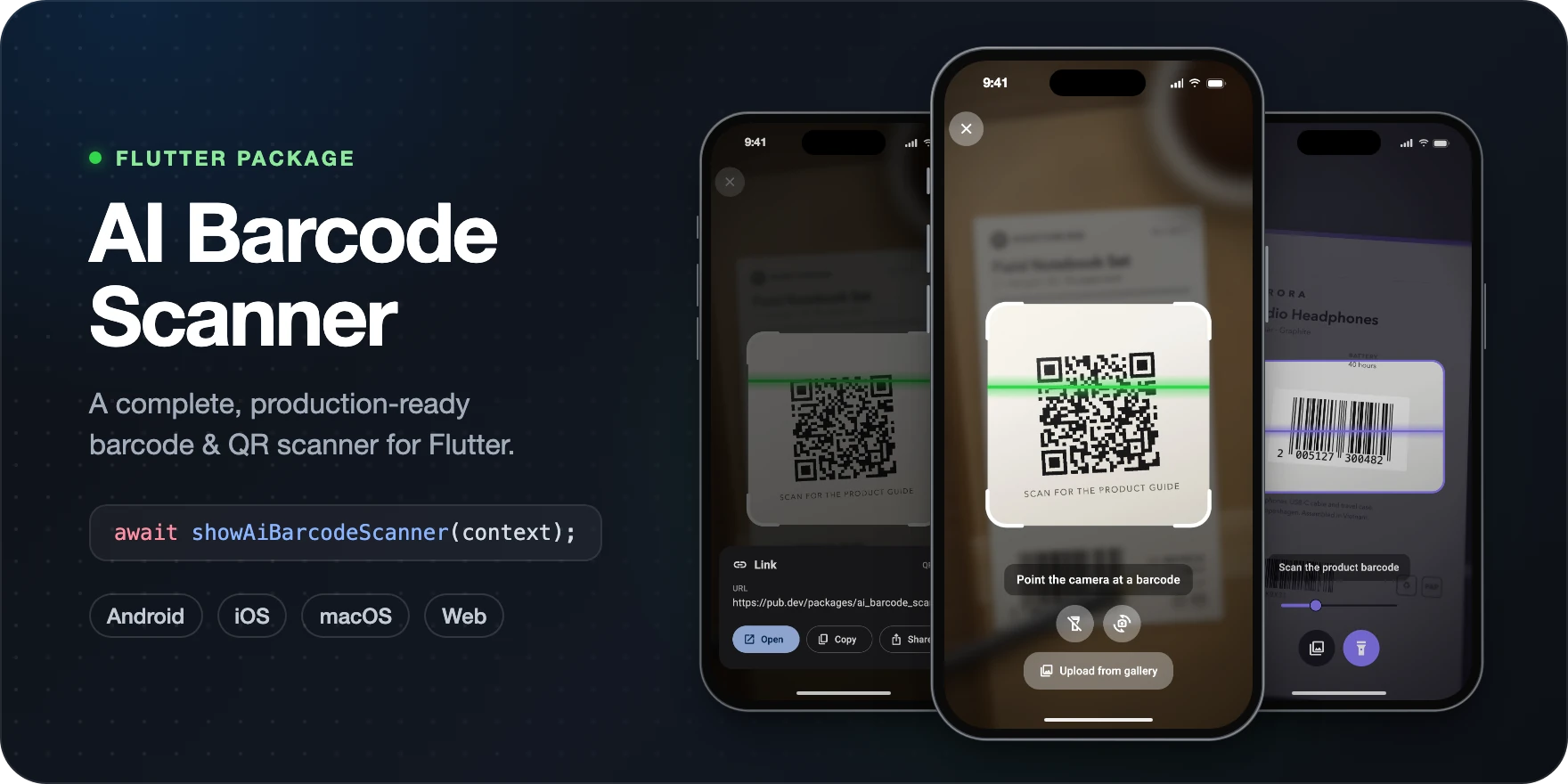



A complete barcode and QR code scanner for Flutter apps on Android, iOS, macOS
and the web, built on mobile_scanner.
One call opens a full-screen scanner with the reticle, controls, haptics,
permission recovery, result rendering and theming already built, and every
camera option of the underlying plugin is a plain widget parameter.
Quick start · Screenshots · API reference · AI prompts · Migration guide · Changelog
-
Install the package.
flutter pub add ai_barcode_scanner
-
Allow camera access on iOS. Add these keys to
ios/Runner/Info.plist(the photo library key is for the gallery button, which is on by default):<key>NSCameraUsageDescription</key> <string>This app needs camera access to scan barcodes.</string> <key>NSPhotoLibraryUsageDescription</key> <string>This app needs photo library access to scan barcodes from images.</string>
Android needs no manifest change. For macOS, the web and the Android build minimums, see Setup.
-
Open the scanner.
import 'package:ai_barcode_scanner/ai_barcode_scanner.dart';
import 'package:flutter/material.dart';

class ScanButton extends StatelessWidget {
  const ScanButton({super.key});

  @override
  Widget build(BuildContext context) {
    return FilledButton(
      onPressed: () async {
        final capture = await showAiBarcodeScanner(context);
        debugPrint(capture?.firstRawValue); // null if the user backed out
      },
      child: const Text('Scan'),
    );
  }
}
Run it on a real device: the iOS Simulator has no camera.

Scan, read, act: showAiBarcodeScanner reads a code, flashes green, and BarcodeResultSheet shows it.
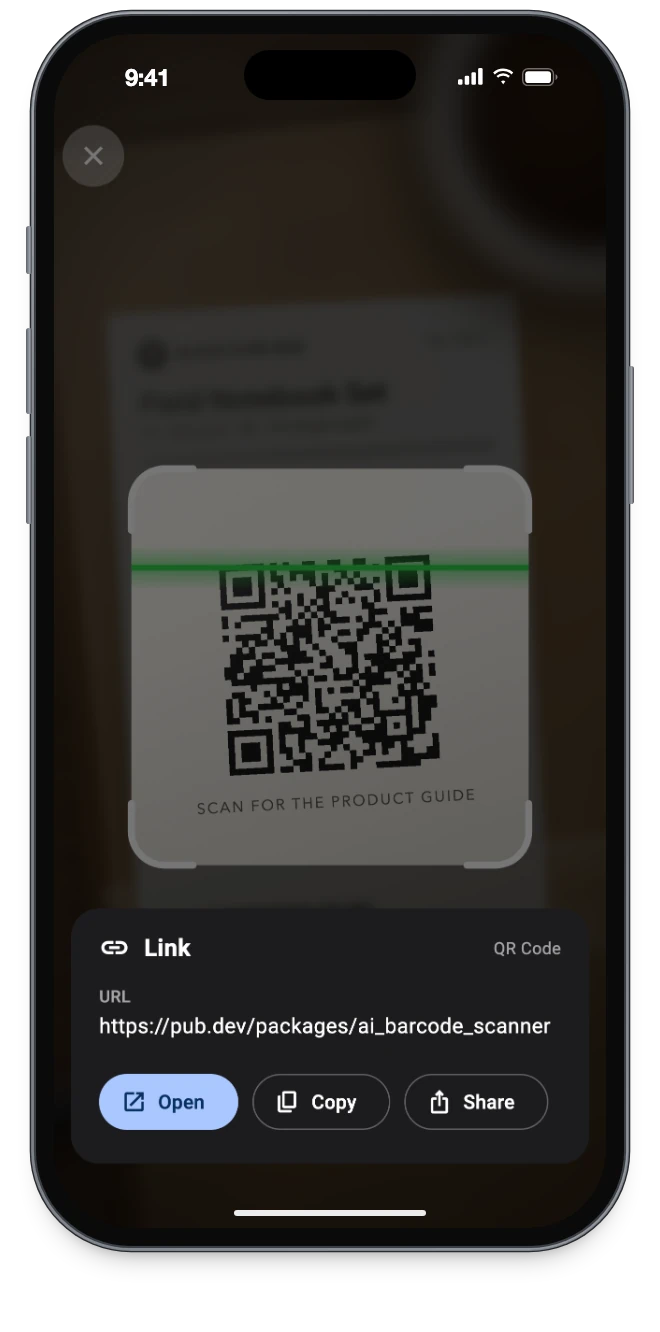
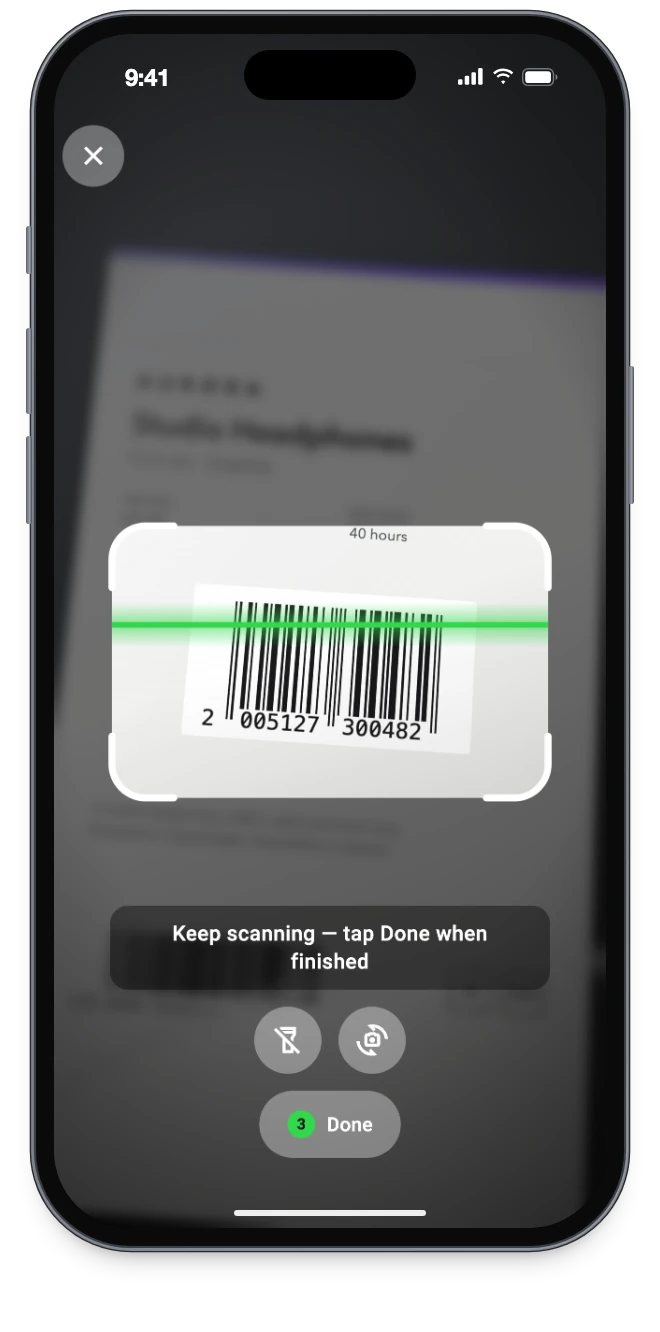
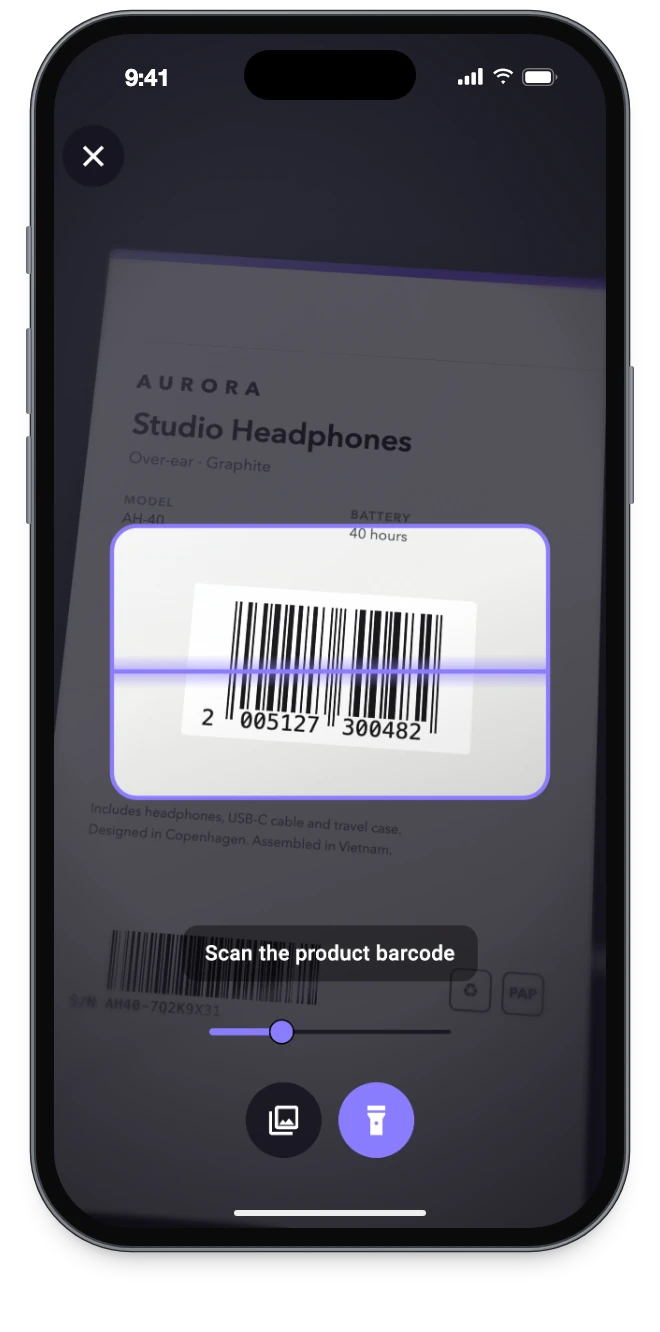
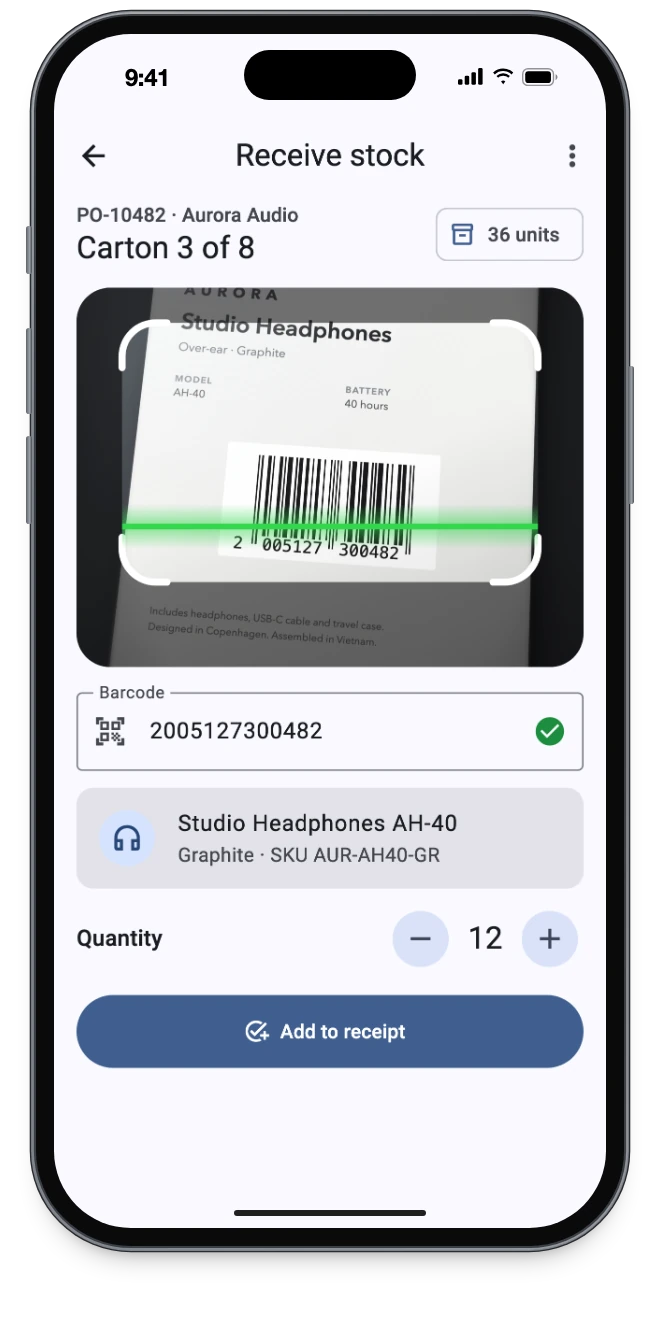
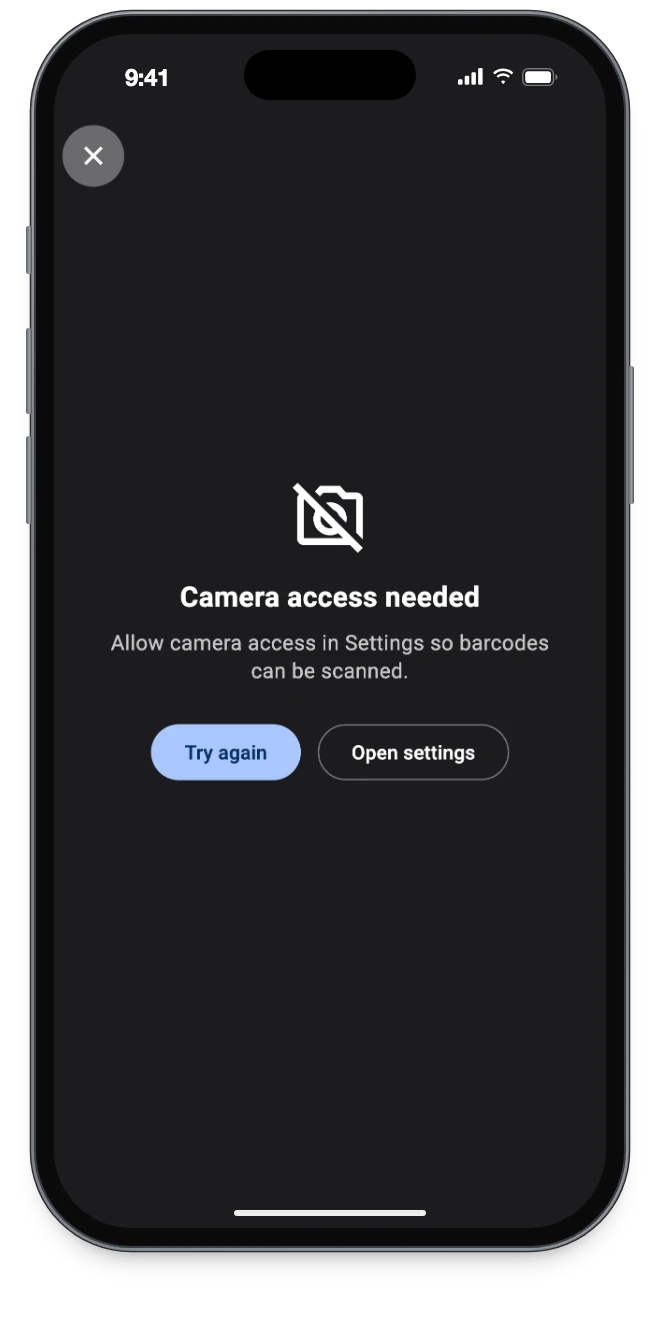
Result sheet BarcodeResultSheet.show · Batch ScanMode.batch · Your brand ScannerTheme.fromColors · Embedded AiBarcodeScanner.embedded · Permission denied onOpenSettings
The scanner UI in these images is the package's real widgets, rendered in a widget test over a staged camera image. The phone frame and status bar are added, and the form around the embedded scanner is sample app code. To try them, run the example app, which has batch, embedded, themed and fully controlled scanner pages.
- One call, full scanner.
showAiBarcodeScanner(context)returns the first accepted code (ornull),showAiBarcodeScannerBatchreturns a list, andAiBarcodeScanner.embeddeddrops the same scanner into your own page. - Scanner UI already built. Responsive reticle, success and reject flashes, torch, camera flip, lens, zoom and gallery controls that hide when the device can't back them, tap to focus and pinch to zoom.
- Every camera option is a parameter. Formats (with
BarcodeFormatSetspresets), detection speed, lens, zoom, resolution — no controller needed. - Validation and scan modes.
ScanValidatorsreject bad codes beforeonDetect; single, continuous and batch modes. - Scan from images on Android, iOS, macOS and the web.
- Readable results. Type labels, icons, parsed Wi-Fi and contact fields,
action URIs, and a ready-made
BarcodeResultSheet. - Permission and error screens with retry and an Open settings hook, and a camera that stops in the background and restarts when the app returns.
- Yours to style.
ScannerTheme, overlay and scan-window config,ScannerLabelsfor every string, haptics and sound hooks, builders. - Light footprint. One import re-exports
mobile_scanner; no permission, URL-launcher or audio dependency; works inmaterial_uiapps. - AI-assistant ready.
llms.txtand copy-paste prompts.
- Start: Platform support · Minimum versions · Setup
- Guide: Usage · Scan modes · The scan window · Theming · Localisation · Controls · Scanning from the gallery · Feedback · Reading the result · Permissions and errors · The controller · Web · Using with material_ui
- Reference: Build with AI assistants · Full API · Troubleshooting · Migration · Under the hood · Contributing · License and acknowledgements
Supported: Android · iOS · macOS · Web. Windows and Linux show a built-in
"not supported" screen (replace it with unsupportedBuilder).
Capabilities differ per platform, and the scanner hides controls it cannot
back: no torch button on macOS, no camera flip on a single-camera device, no
zoom slider on the web. To query the matrix yourself, use
ScannerPlatformSupport.current.
| Capability | Android | iOS | macOS | Web |
|---|---|---|---|---|
| Camera scanning | ✅ | ✅ | ✅ | ✅ |
| Scan from gallery | ✅ | ✅¹ | ✅ | ✅² |
| Scan window restriction | ✅ | ✅ | ✅ | ✅ |
| Torch | ✅ | ✅ | ❌ | ❌ |
| Zoom (pinch / slider) | ✅ | ✅ | ✅ | ❌ |
| Tap to focus | ✅ | ✅ | ❌ | ❌ |
| Lens selection | ✅³ | ✅ | ❌ | ❌ |
| Auto zoom | ✅ | ❌ | ❌ | ❌ |
| Invert image | ✅ | ❌ | ❌ | ❌ |
| Camera resolution | ✅ | ❌ | ❌ | ✅⁴ |
Frame bytes (returnImage) |
✅ | ✅ | ✅ | ❌ |
| Barcode geometry / highlights | ✅ | ✅ | ✅ | ✅ |
| Choose web detection backend | ❌ | ❌ | ❌ | ✅ |
¹ Not on the iOS Simulator. This is a simulator restriction, not a platform one.
² Since 8.1.0, through a built-in zxing-wasm decoder that is downloaded the first time an image is scanned. See Scanning images on the web.
³ Android reports lens types, but CameraX cannot select physical sub-cameras, so
useCloseRangeLens() always resolves to the normal lens there. Use
autoZoom: true instead.
⁴ A hint: it is passed as an ideal camera constraint, which the browser may not honour.
| Platform / SDK | Minimum |
|---|---|
| Dart | 3.7.0 |
| Flutter | 3.29.0 |
| Android | minSdk 23, compileSdk 36, Android Gradle Plugin 8.9.1+, Kotlin Gradle Plugin 2.x |
| iOS | 12.0 |
| macOS | 10.14 |
The iOS and macOS rows are mobile_scanner's minimums; this package has no
native code of its own. Every Flutter 3.29+ app template already meets them,
and new Flutter 3.47 projects target iOS 15.0 and macOS 12.0.
The Android row is set by mobile_scanner 7.4: CameraX 1.6 refuses to build
with an older Android Gradle Plugin or compileSdk, and the plugin configures
Kotlin through the Kotlin Gradle Plugin 2 DSL. Apps created from an older
Flutter template (Flutter 3.29's uses AGP 8.7, Kotlin 1.8 and minSdk 21) have to
raise these in android/settings.gradle(.kts) and
android/app/build.gradle(.kts).
dependencies:
  ai_barcode_scanner: ^8.2.0
All of mobile_scanner is re-exported, so one import is enough and you do not
need to add mobile_scanner to your own pubspec.yaml:
import 'package:ai_barcode_scanner/ai_barcode_scanner.dart';Add the two Info.plist keys from Quick start. Leave out
NSPhotoLibraryUsageDescription only if you hide the gallery button. The
deployment target has to be at least iOS 12.0, which Flutter 3.29+ templates
already meet; see Minimum versions.
Tick Camera under Signing & Capabilities, or add these keys to both
.entitlements files (macos/Runner/DebugProfile.entitlements and
Release.entitlements):
<key>com.apple.security.device.camera</key>
<true/>
<!-- Only if you keep the gallery button. -->
<key>com.apple.security.files.user-selected.read-only</key>
<true/>
Also add NSCameraUsageDescription to macos/Runner/Info.plist, as on iOS. The
deployment target has to be at least macOS 10.14, which Flutter 3.29+ templates
already meet.
No manifest change is needed: mobile_scanner declares the camera permission
itself. Check your build against the minimum versions.
One optional setting, in android/gradle.properties:
# Download the ML Kit model on first use instead of bundling it.
# Saves 3–10 MB of app size.
dev.steenbakker.mobile_scanner.useUnbundled=trueNothing goes in index.html: the detection library is fetched on first use.
The camera needs a secure context (HTTPS or localhost). See Web to
choose a backend, host the library yourself, or set up a Content Security
Policy.
| You want to | Use |
|---|---|
| Scan once and get a value back (fill a field, open a link) | await showAiBarcodeScanner(context) |
| Collect several distinct codes and get the list at the end | await showAiBarcodeScannerBatch(context) |
| Push a full-screen scanner that stays open, or has custom chrome | AiBarcodeScanner(onDetect: ...) |
| Put a scanner inside an existing page, card or tab | AiBarcodeScanner.embedded(...) |
| Drive the scanner from your own buttons, or verify before accepting | AiBarcodeScanner(controller: AiBarcodeScannerController(...)) |
| Read a code from an image the app already has, without camera UI | AiBarcodeScannerController(autoStart: false).analyzeScannerImage(...), then dispose() it |
| Present a scanned result | BarcodeResultSheet.show(context, barcode: ...) |
final capture = await showAiBarcodeScanner(context);
debugPrint(capture?.firstRawValue); // null if the user backed out
It returns null if the user backs out. The scanner closes itself on the first
accepted detection; pass a validator to decide what counts as acceptable.
showAiBarcodeScanner takes the most common scanner options (formats,
validator, theme, labels, overlayConfig, enabledActionButtons and
more) plus routeSettings, fullscreenDialog (default true) and
useRootNavigator.
showAiBarcodeScannerBatch is the equivalent for collecting several codes. It
returns the distinct codes when the user taps Done or maxScans is reached, and
an empty list if the user closes the scanner, discarding what was collected.
Navigator.of(context).push(
  MaterialPageRoute(
    builder: (_) => AiBarcodeScanner(
      enabledActionButtons: const {
        ScannerAction.gallery,
        ScannerAction.cameraSwitch,
        ScannerAction.torch,
        ScannerAction.close, // not in the widget's defaults
      },
      onDetect: (capture) {
        Navigator.of(context).pop(capture.firstRawValue);
      },
    ),
  ),
);
The close button lives in the default app bar and appears only when
enabledActionButtons contains ScannerAction.close. showAiBarcodeScanner
and showAiBarcodeScannerBatch include it by default; AiBarcodeScanner does
not, so add it (or your own way back) when you push the widget yourself. A
custom appBarBuilder replaces it too.
You do not need a controller to configure the camera:
AiBarcodeScanner(
  formats: const [BarcodeFormat.qrCode, BarcodeFormat.ean13],
  detectionSpeed: DetectionSpeed.noDuplicates,
  facing: CameraFacing.back,
  torchEnabled: false,
  autoZoom: true,          // Android
  invertImage: false,      // Android — reads white-on-black codes
  initialZoom: 0.2,
  cameraResolution: const Size(1920, 1080), // Android; a hint on the web
  returnImage: false,
  onDetect: handle,
)
Naming your formats is the single cheapest accuracy and battery win available. An unrestricted detector runs every decoder over every frame. There are presets:
AiBarcodeScanner(formats: BarcodeFormatSets.retail)   // EAN, UPC, Code 128, DataBar
AiBarcodeScanner(formats: BarcodeFormatSets.qrOnly)
AiBarcodeScanner(formats: BarcodeFormatSets.logistics) // Code 128/39/93, ITF-14, DataMatrix, QR
AiBarcodeScanner(formats: BarcodeFormatSets.documents) // PDF417, QR, Aztec, DataMatrix
AiBarcodeScanner(formats: BarcodeFormatSets.twoDimensional) // QR, Micro QR, Aztec, DataMatrix, PDF417, MaxiCode
detectionTimeoutMs only applies when detectionSpeed is
DetectionSpeed.normal. To throttle callbacks in continuous mode, use
scanCooldown instead.
A rejected barcode flashes the reticle red, fires the rejection haptic, briefly
swaps the scan hint for ScannerLabels.invalidBarcode ("That barcode is not
accepted here"), and never reaches onDetect. Scanning continues:
AiBarcodeScanner(
  validator: ScanValidators.all([
    ScanValidators.formats({BarcodeFormat.qrCode}),
    ScanValidators.url(allowedHosts: {'example.com'}),
  ]),
  onDetect: handle,
)
Built-in validators: formats, types, contains, startsWith, matches,
url and length, plus all and either to combine them (any accepts
everything). They check the first barcode in a capture, and the value checks
read its displayValue, falling back to rawValue. matches is anchored: the
whole value must match.
Or write your own: a validator is just bool Function(BarcodeCapture). A
validator that throws rejects the scan and reports the error to
onDetectError.
SizedBox(
  height: 320,
  child: AiBarcodeScanner.embedded(
    onDetect: handle,
  ),
)
No Scaffold, no app bar, no default chrome: the surrounding page owns the
layout, so give the scanner a bounded size. The defaults are quieter than the
full-screen scanner's (no controls, no gallery button and no scan hint, so no
rejection or gallery messages either); turn them back on with
enabledActionButtons, galleryButtonType and showScanHint.
AiBarcodeScanner(scanMode: ScanMode.single)      // default
AiBarcodeScanner(scanMode: ScanMode.continuous)
AiBarcodeScanner(scanMode: ScanMode.batch)single: report the first accepted barcode, then stop detecting. The preview keeps running so the screen does not go black while you navigate or validate. Callcontroller.resumeScanning()to scan again.continuous: report every accepted barcode, throttled byscanCooldown(default 1.2 s).batch: collect distinct barcodes until the user taps Done ormaxScansis reached, then fireonScanCompletewith the lot.onDetectfires for each capture that adds a new code.
AiBarcodeScanner(
  scanMode: ScanMode.batch,
  maxScans: 10,
  onScanComplete: (barcodes) => Navigator.pop(context, barcodes),
)
Batch mode compares codes by rawValue, falling back to displayValue. After a
batch completes, detection stays paused until you call
controller.clearCollected() and controller.resumeScanning().
The reticle is guidance, not a filter. By default a barcode is accepted wherever it appears in the preview, because restricting detection has sharp edges on Android: the barcode must be entirely inside the rectangle, and any barcode for which ML Kit reports no corner points is dropped outright.
Opt in when several codes are visible and the user should aim at one:
AiBarcodeScanner(restrictDetectionToScanWindow: true)The window is computed from the preview's box, not the screen, so an app bar, a bottom sheet or a notch can never push the reticle out of alignment with the area being read.
AiBarcodeScanner(
  scanWindowConfig: const ScanWindowConfig(
    shape: ScanWindowShape.wide,     // auto | square | wide | tall | fullPreview | custom
    widthFactor: 0.9,
    maxWidth: 420,                   // keeps it sane on tablets and desktop
    alignment: Alignment(0, -0.08),
    padding: EdgeInsets.all(24),
  ),
)
ScanWindowShape.auto (the default) picks a square when formats is empty or
lists only 2D symbologies, and otherwise a landscape rectangle (1.6:1, less
elongated than ScanWindowShape.wide). It reads the widget's own formats, so
a scanner given a controller always gets a square. For anything the config
cannot describe:
scanWindowConfig: ScanWindowConfig.builder(
  (context, constraints) => Rect.fromLTWH(0, 0, constraints.maxWidth, 200),
)
An explicit scanWindow rectangle, in the preview's coordinates, overrides
scanWindowConfig altogether.
AiBarcodeScanner(
  theme: ScannerTheme.fromColorScheme(Theme.of(context).colorScheme),
)
ScannerTheme.fromColors(primary: …, surface: …) derives the same theme from
individual colours. It is the way to theme the scanner in an app built on
material_ui, whose ColorScheme
fromColorScheme cannot accept.
Or set tokens individually. Anything left null keeps a built-in default that
is tuned for legibility over a live camera feed:
AiBarcodeScanner(
  theme: const ScannerTheme(
    reticleColor: Color(0xFFFFFFFF),
    reticleSuccessColor: Color(0xFF32D74B),
    reticleErrorColor: Color(0xFFFF453A),
    controlBackgroundColor: Color(0x59FFFFFF),
    controlActiveBackgroundColor: Color(0xFFFFD60A),
    controlSize: 48,
    overlayBlurSigma: 4,
    borderRadius: 20,
  ),
)
The reticle's own geometry and animation live in ScannerOverlayConfig:
AiBarcodeScanner(
  overlayConfig: const ScannerOverlayConfig(
    scannerBorder: ScannerBorder.corner,          // corner | full | none
    scannerAnimation: ScannerAnimation.center,    // center | fullWidth | none
    scannerOverlayBackground: ScannerOverlayBackground.blur, // blur | dim | none
    cornerLength: 44,
    borderRadius: 24,
    animationDuration: Duration(milliseconds: 1500),
    showBarcodeHighlights: true,   // outline every detected barcode
    respectReduceMotion: true,     // drop the sweep when the OS asks
  ),
)
ScannerOverlayConfig.minimal() is the cheapest configuration to render (corner
brackets only: no dimming, no blur, no animation) and the right choice for an
embedded scanner or a low-end device.
All configuration classes are immutable and have copyWith.
Every user-visible string is overridable, with English defaults, and no intl
dependency:
AiBarcodeScanner(
  labels: ScannerLabels(
    scanHint: context.l10n.pointAtBarcode,
    galleryButton: context.l10n.pickFromGallery,
    permissionDeniedTitle: context.l10n.cameraNeeded,
    permissionDeniedMessage: context.l10n.cameraNeededBody,
    openSettingsButton: context.l10n.openSettings,
    barcodeFieldLabels: {'wifi.ssid': context.l10n.network},
  ),
)
Anything you leave out keeps its default, so partial translations are fine.
Besides plain strings, scannedCountLabel and unsupportedPlatformMessage are
functions, and barcodeTypeLabels and barcodeFieldLabels are maps keyed by
BarcodeType.name and BarcodeField.key.
Three labels are short messages that take over the scan hint for a couple of
seconds, and are read out by screen readers: invalidBarcode when the
validator rejects a scan, noBarcodeFoundInImage when a picked image has no
barcode, and galleryUnsupported when picking or reading the image throws
UnsupportedError. They only appear where the hint does, so not with
showScanHint: false or in the embedded scanner by default. Set one to '' to
turn just that message off.
AiBarcodeScanner(
  enabledActionButtons: const {
    ScannerAction.torch,
    ScannerAction.cameraSwitch,
    ScannerAction.gallery,
    ScannerAction.lens,     // cycle normal / wide / zoom lenses
    ScannerAction.zoom,     // zoom slider
    ScannerAction.close,
  },
  galleryButtonType: GalleryButtonType.filled,  // filled | icon | none
)| Entry point | Default controls | Gallery button |
|---|---|---|
AiBarcodeScanner |
gallery, camera switch, torch | filled |
showAiBarcodeScanner |
gallery, camera switch, torch, close | filled |
showAiBarcodeScannerBatch |
camera switch, torch, close | none (fixed) |
AiBarcodeScanner.embedded |
none | none |
The controls lay themselves out along the preview's long axis: a row beneath the scan window when the preview is portrait, a column pinned to the trailing edge when it is landscape or on desktop. Each button carries a semantics label and a tooltip, and the whole strip scrolls rather than overflowing at large text scales. The controls over the preview appear once the camera has started.
GalleryButtonType.none hides only the gallery button. ScannerAction.close
renders in the default app bar rather than with the other controls, so a custom
appBarBuilder replaces it too; provide your own way back.
Gestures, all on by default:
AiBarcodeScanner(
  tapToFocus: true,            // with an animated focus ring
  enablePinchToZoom: true,
  pinchZoomSensitivity: 1.0,
  doubleTapToResetZoom: true,
)The gallery button opens image_picker and reads the picked image with the
platform's own decoder: ML Kit on Android, Vision on iOS and macOS, and a
built-in zxing-wasm decoder on the web (see
Scanning images on the web). A picked image runs
through the same validator, feedback and overlay flash as a camera detection,
and one with no barcode in it briefly shows
ScannerLabels.noBarcodeFoundInImage in the scan hint (when the hint is on).
Pass galleryImagePicker. You override only how the image is chosen: return
it as a ScannerImage, or null if the user cancelled. Wrap whatever your
picker hands you, whether an XFile, a path or bytes:
// An XFile — from image_picker, file_selector, camera, desktop_drop, … Here, a
// photo taken on the spot instead of one from the gallery.
AiBarcodeScanner(
  galleryImagePicker: (context) async {
    final file = await ImagePicker().pickImage(source: ImageSource.camera);
    return file == null ? null : ScannerImage.xFile(file);
  },
)

// A file path.
AiBarcodeScanner(
  galleryImagePicker: (context) async {
    final String? path = await myFilePicker();
    return path == null ? null : ScannerImage.path(path);
  },
)

// Encoded bytes: a web file input, the clipboard, a download, an asset.
// (Uint8List is from dart:typed_data.)
AiBarcodeScanner(
  galleryImagePicker: (context) async {
    final Uint8List? bytes = await myBytesPicker();
    return bytes == null ? null : ScannerImage.bytes(bytes, name: 'code.png');
  },
)
Bytes are an encoded image file (any format the platform can decode: PNG, JPEG, WebP; HEIC on Android, iOS, macOS and Safari), not raw pixels, and they work on every platform, the web included. On Android, iOS and macOS, whose decoders only open files, they are written to a temporary file for the analysis and deleted straight afterwards.
Note:
ImagePickerandXFilecome frompackage:image_picker/image_picker.dart. Addimage_pickerto your ownpubspec.yamlto import it. The built-in gallery button needs nothing extra.
To hear about picks and failures:
AiBarcodeScanner(
  onGalleryImagePick: (image) => debugPrint('Picked $image'), // null = cancelled
  onGalleryScanError: (error, stack) => report(error),
)
Without onGalleryScanError, errors go to FlutterError.reportError. Either
way the reticle flashes red and the rejection haptic fires. The only error that
also gets a message is UnsupportedError, from a picker or decoder without
still-image support, which shows ScannerLabels.galleryUnsupported; an
unreadable file is not "no barcode", so it shows none.
To replace the decoding as well (a web app whose Content Security Policy
cannot allow jsDelivr, an offline deployment, a server-side decoder), pass
galleryImageAnalyzer. It is used for every picked image on every platform,
receives the formats the scanner is restricted to (empty means all), and
returns null or an empty capture when nothing was found. What it returns
still goes through validator and feedback:
AiBarcodeScanner(
  galleryImageAnalyzer: (image, formats) async {
    final bytes = await image.readAsBytes();
    return myDecoder.decode(bytes, formats);
  },
)
Note:
imagePickerandonImagePickfrom 8.0 still work, but are deprecated in favour ofgalleryImagePickerandonGalleryImagePickand will be removed in 9.0.0. See the migration guide.
AiBarcodeScanner(
  feedback: const ScannerFeedbackConfig(
    detectHaptic: ScannerHaptic.medium,
    rejectHaptic: ScannerHaptic.heavy,
    controlHaptic: ScannerHaptic.selection,
    playSystemSound: true,
  ),
)
ScannerHaptic is none, selection, light, medium, heavy or vibrate.
The package has no audio dependency. For a real scanner beep, silence the
built-ins and hook up your own player:
AiBarcodeScanner(
  feedback: ScannerFeedbackConfig.silent(
    onFeedback: (event) {
      if (event == ScannerFeedbackEvent.detect) audioPlayer.play(beep);
    },
  ),
)
ScannerFeedbackEvent is detect, reject or control.
mobile_scanner returns a rich, typed payload (Wi-Fi networks, contacts,
calendar events, driver licences), and this package makes it presentable:
onDetect: (capture) {
  final barcode = capture.barcodes.first;

  barcode.bestValue;          // displayValue, falling back to rawValue
  barcode.typeLabel;          // "Wi-Fi", "Contact", "Link", …
  barcode.typeIcon;           // a matching Material icon
  barcode.format.displayName; // "QR Code", "EAN-13", …
  barcode.actionUri;          // mailto:, tel:, sms:, geo:, https: — or null
  barcode.boundingBox;        // extent of Barcode.corners, in camera space

  for (final field in barcode.fields) {
    debugPrint('${field.label}: ${field.value}');   // Network: Home
  }
}
On the capture itself, firstBarcode, firstRawValue, firstDisplayValue and
values save the barcodes.first dance.
There is a ready-made sheet too:
onDetect: (capture) => BarcodeResultSheet.show(
  context,
  barcode: capture.barcodes.first,
  onOpen: (uri) => launchUrl(uri),   // your launcher; no dependency added here
),
Copy is always shown. Open appears when you pass onOpen and the barcode has an
actionUri; Share appears when you pass onShare.
The scanner distinguishes the three failures a user can act on (permission denied, no usable camera, and everything else) and offers retry plus an "Open settings" hook. The OS permission prompt appears when the camera starts. The package deliberately has no permissions dependency:
AiBarcodeScanner(
  onOpenSettings: () => openAppSettings(), // e.g. from permission_handler
  onError: (error) => report(error),
)
The "Open settings" button appears only on the permission-denied screen, and
only when you pass onOpenSettings. Replace the screen entirely with
errorBuilder if you prefer.
final controller = AiBarcodeScannerController(
  formats: const [BarcodeFormat.qrCode],
);

AiBarcodeScanner(
  controller: controller,
  onDetect: (capture) async {
    controller.pauseScanning();          // freeze detection, keep the preview
    final ok = await verifyOnServer(capture);
    if (!ok) controller.resumeScanning();
  },
);
In ScanMode.single, detection is already paused by the time onDetect runs;
resumeScanning() is what matters there.
With a controller, camera options go on the controller. Passing formats,
torchEnabled, returnImage, autoZoom, invertImage, initialZoom or
cameraResolution to the widget as well trips a debug assertion, and
detectionSpeed, detectionTimeoutMs, facing, lensType and autoStart are
ignored. You own the controller, so dispose() it. There is one camera session:
never show two live scanners at once.
The facade covers start / stop / pause, toggleTorch / setTorch,
switchCamera / switchLens / useCloseRangeLens / supportedLenses,
setZoomScale / resetZoomScale, setFocusPoint, analyzeImage /
analyzeScannerImage, batch collect / clearCollected / collected, and
the getters isScanningPaused, isRunning, isTorchOn, hasTorch and
hasMultipleCameras. It exposes state (a
ValueListenable<MobileScannerState>) and the barcodes stream, and notifies
its own listeners when scanning is paused or resumed and when codes are
collected or cleared. controller.raw is the underlying
MobileScannerController for anything not wrapped.
To scan an image your app already has (from a share intent, the clipboard, a download) without going through the gallery button:
final capture = await controller.analyzeScannerImage(
  ScannerImage.bytes(pngBytes),
  formats: const [BarcodeFormat.qrCode],
);
It accepts any ScannerImage, works on the web too, and needs no running
camera. null and an empty capture both mean nothing was found. It throws
MobileScannerBarcodeException for an unreadable image and UnsupportedError
on Windows, Linux and the iOS Simulator. analyzeImage(path) is the path-only
form.
Already have a MobileScannerController?
AiBarcodeScannerController.fromMobileScanner(existing)The wrapper's dispose() leaves a controller passed this way alone; dispose it
where you created it.
The detection backend is selectable:
AiBarcodeScanner(
  webBarcodeReader: WebBarcodeReader.auto, // auto | barcodeDetector | zxingWasm | zxingJs
)autouses the browser's nativeBarcodeDetectorwhere available (Chrome/Edge 83+, Safari 17+) and falls back to zxing-wasm.zxingWasmworks everywhere modern, including Firefox, and fetches about 1.1 MB of WebAssembly (roughly 460 KB compressed) on first use.zxingJsis the legacy ZXing-js library, loaded fromunpkg.com.
Leaving webBarcodeReader null (the default) keeps the page's current reader:
auto, unless another scanner on the page has set one.
If a Content Security Policy or an air-gapped deployment forbids the jsDelivr
script, copy dist/iife/reader/index.js from the zxing-wasm@3.1.3 npm package
to web/zxing-wasm/index.js in your app, and point the scanner at it:
AiBarcodeScanner(
  // Relative, so it respects the page's <base href>.
  webBarcodeLibraryScriptUrl: 'zxing-wasm/index.js',
)
showAiBarcodeScanner and showAiBarcodeScannerBatch take the same
webBarcodeLibraryScriptUrl (and webBarcodeReader), so the one-liner keeps
working under a strict CSP:
final capture = await showAiBarcodeScanner(
  context,
  webBarcodeLibraryScriptUrl: 'zxing-wasm/index.js',
);
That copy serves the default auto reader and WebBarcodeReader.zxingWasm
alike, and also scans picked images.
An app that only scans images it already has, with no scanner on the page, points the image decoder at the copy once, before the first scan:
void main() {
  AiBarcodeScannerController.setWebImageDecoderScriptUrl('zxing-wasm/index.js');
  runApp(const MyApp());
}
It does nothing on other platforms, so it is safe to call unconditionally.
Unlike webBarcodeLibraryScriptUrl, it does not change where the camera loads
its library from.
- It applies to the whole page, and the first URL wins — whether it came
from
setWebImageDecoderScriptUrlor a scanner — likemobile_scanner's own setting. - Set it before the first scan. Once zxing-wasm is on the page (loaded by an earlier scan, or by the camera), that copy is reused.
- The
.wasmbinary still comes fromfastly.jsdelivr.net, for the camera and picked images alike. - A
zxingJsmirror (withwebBarcodeReader: WebBarcodeReader.zxingJs) is a different library that cannot read picked images, so the web gallery button stays hidden unless you passgalleryImageAnalyzer.
Since 8.1.0 the gallery button works in the browser too, and appears there by
default. mobile_scanner cannot read still images on the web yet
(juliansteenbakker/mobile_scanner#1494),
so this package does it itself: the browser decodes the picked file (any format
it can display, with EXIF orientation applied) and zxing-wasm reads the pixels.
-
The first scanned image downloads zxing-wasm 3.1.3: a 38 KB script from
cdn.jsdelivr.net(or your copy), then about 460 KB compressed of WebAssembly fromfastly.jsdelivr.net, both cached. A failed download fails that scan; the next one tries again. -
Nothing is fetched until an image is scanned, and nothing at all if the camera has already loaded zxing-wasm (
zxingWasm, orautoin a browser withoutBarcodeDetector). -
A Content Security Policy has to allow it:
script-src https://cdn.jsdelivr.net 'wasm-unsafe-eval'; connect-src https://fastly.jsdelivr.net blob:;blob:is how a picked file is read back (XFile.pathis ablob:URL); URLs you pass toanalyzeImageorScannerImage.pathneeddata:or theirhttp(s)origin too. Failures throw aMobileScannerBarcodeExceptionthat says what to allow, reported toonGalleryScanError. -
Offline or locked-down apps can pass
galleryImageAnalyzerto decode images their own way; the built-in decoder then never loads. In a browser withoutBarcodeDetectorthe camera still uses zxing-wasm, so host that as well. -
The gallery button is part of the live scanner. It appears once the camera has started, not over the error screen (no webcam, or access denied). Without a camera, call
analyzeScannerImagefrom a button of your own. -
Pickers must return bytes or an
XFile. A browser exposes no file path, so a customgalleryImagePickerreturnsScannerImage.bytesor.xFile. -
The controller works too.
analyzeScannerImageaccepts anyScannerImage, andanalyzeImage(path)ablob:,data:or fetchablehttp(s):URL. Onlycontroller.raw.analyzeImage(mobile_scanner's own) still throwsUnsupportedError.
Not wanted on the web? Hide the button there:
import 'package:flutter/foundation.dart' show kIsWeb;

AiBarcodeScanner(
  galleryButtonType: kIsWeb ? GalleryButtonType.none : GalleryButtonType.filled,
)Flutter now publishes Material and Cupertino as the separate
material_ui and
cupertino_ui packages (usable from
Flutter 3.44), while package:flutter/material.dart still ships in the SDK.
The 8.x line of this package still imports package:flutter/material.dart, and
works with both kinds of app:
- Apps on
flutter/material, meaning any app that has not migrated, need nothing and see no change. - Apps on
material_uiwork withoutMaterialUiCompatibilityBridge, in any locale. The scanner supplies theflutter/materiallocalizations it needs to its own subtree, keeping your app's locale and text direction. BarcodeResultSheet.showpresents the sheet on a route of its own, and confirms a copy on the button itself when there is noScaffoldMessenger.- As with the bridge, your
LocalizationsDelegates load once more when the scanner mounts, so a truly asynchronousloaddelays its first frame.
What the scanner cannot see in a material_ui app is your Theme: its
ThemeData is a different type from flutter/material's. Without a
ScannerTheme the scanner uses its built-in palette, which is tuned for a
camera feed. To match your brand, pass your colours to ScannerTheme.fromColors,
which derives the same theme ScannerTheme.fromColorScheme would:
import 'package:ai_barcode_scanner/ai_barcode_scanner.dart';
import 'package:material_ui/material_ui.dart';

class ScanPage extends StatelessWidget {
  const ScanPage({super.key});

  @override
  Widget build(BuildContext context) {
    final scheme = Theme.of(context).colorScheme; // material_ui's ColorScheme
    return AiBarcodeScanner(
      theme: ScannerTheme.fromColors(
        primary: scheme.primary,
        onPrimary: scheme.onPrimary,
        surface: scheme.surface,
        onSurface: scheme.onSurface,
        error: scheme.error,
      ),
      onDetect: (capture) => Navigator.of(context).pop(capture),
    );
  }
}
Every string the scanner renders comes from ScannerLabels, including the
result sheet's barrier label, dismissSheetLabel. The few that come from the
framework instead (the text selection toolbar, and some built-in tooltips) use
the SDK's English defaults in a material_ui app. If you would rather the
scanner followed your Theme and your app's Material localizations
automatically, MaterialUiCompatibilityBridge still works: with it in place,
the scanner picks up the theme and localizations it maps across.
The package is planned to migrate to material_ui in 9.0.0. That takes
theme and localizations away from apps still on flutter/material (there is no
reverse bridge), and material_ui needs Flutter 3.44 or later. So, as Flutter
advises for this migration, it waits for a major version.
This repository publishes an
llms.txt
written for coding assistants: the signatures and defaults of the version it
names, platform setup, compile-checked recipes and known pitfalls. Point your
assistant at it before asking for scanner code, so it uses the real API instead
of guessing.
-
Chat assistants (ChatGPT, Claude, Gemini, …): give them this URL, or paste in the file's contents:
https://raw.githubusercontent.com/itsarvinddev/barcode_scanner/master/llms.txt -
Local agents (Claude Code, Cursor, GitHub Copilot agent mode, …): package versions 8.2.0 and later include
llms.txtin the archive, so the agent can read the copy that matches the version you installed. Afterflutter pub get, the package directory is therootUriofai_barcode_scannerin.dart_tool/package_config.json:# Prints the installed package directory; llms.txt is at its root. # rootUri is a file:// URI, or a path relative to .dart_tool/ for path dependencies. grep -A1 '"name": "ai_barcode_scanner"' .dart_tool/package_config.json
The default location is
~/.pub-cache/hosted/pub.dev/ai_barcode_scanner-<version>/llms.txton macOS and Linux, and%LOCALAPPDATA%\Pub\Cache\hosted\pub.dev\ai_barcode_scanner-<version>\llms.txton Windows. SettingPUB_CACHEchanges it. With 8.1.0 itself, or whenever there is no local copy, use the URL above.
Optionally, add this line to your project's AGENTS.md, CLAUDE.md,
.cursor/rules/*.mdc or .github/copilot-instructions.md:
- Barcode scanning uses ai_barcode_scanner. Before writing or changing scanner
  code, read its llms.txt and use only APIs it documents. Find llms.txt at the
  `rootUri` of `ai_barcode_scanner` in `.dart_tool/package_config.json`, or at
https://raw.githubusercontent.com/itsarvinddev/barcode_scanner/master/llms.txtReplace everything in [BRACKETS].
Add a scan button that fills a text field
Read the ai_barcode_scanner llms.txt first
(https://raw.githubusercontent.com/itsarvinddev/barcode_scanner/master/llms.txt,
or the copy in the installed package) and use only APIs it documents.
Do not invent parameters.
Add a scan button to the [FIELD NAME] text field in [FILE PATH]. Tapping it
opens showAiBarcodeScanner restricted to [FORMATS, e.g. EAN-13 and UPC-A],
and the scanned value goes into the field.
Reject values that don't match [RULE, e.g. 8–14 digits] with a validator
(don't filter the result afterwards). Handle cancel (null), and check mounted
after the await.
Add any missing platform setup for [PLATFORMS], then run flutter analyze and
fix every issue.
Full-screen QR scanner that validates and opens URLs
Read the ai_barcode_scanner llms.txt first
(https://raw.githubusercontent.com/itsarvinddev/barcode_scanner/master/llms.txt,
or the copy in the installed package) and use only APIs it documents.
Do not invent parameters.
Create a full-screen QR scanner that accepts only https URLs on
[ALLOWED HOSTS] and opens the scanned link with url_launcher (add the
dependency if it is missing).
Use BarcodeFormatSets.qrOnly and ScanValidators, so invalid codes flash red
while scanning continues, and set a ScannerLabels.scanHint that tells users
which codes are accepted.
Open it from [ENTRY POINT, e.g. the "Scan" button on HomePage]. Run flutter
analyze and fix every issue.
Embedded inventory scanner with batch collection
Read the ai_barcode_scanner llms.txt first
(https://raw.githubusercontent.com/itsarvinddev/barcode_scanner/master/llms.txt,
or the copy in the installed package) and use only APIs it documents.
Do not invent parameters.
Build an inventory screen at [FILE PATH]: an AiBarcodeScanner.embedded,
[HEIGHT] tall, above a live list of the distinct codes collected so far,
showing each code's value and format.
Use ScanMode.batch with an AiBarcodeScannerController the screen owns
(formats [FORMATS] set on the controller, not the widget; dispose it) and add
a Clear action.
When Done is tapped, pass the list to [SUBMIT FUNCTION], then clear and resume
scanning. Add any missing platform setup for [PLATFORMS]. Run flutter analyze
and fix every issue.
Theme the scanner to match my app
Read the ai_barcode_scanner llms.txt first
(https://raw.githubusercontent.com/itsarvinddev/barcode_scanner/master/llms.txt,
or the copy in the installed package) and use only APIs it documents.
Do not invent parameters.
Theme every ai_barcode_scanner screen in this app to match our brand, using
colours from [THEME SOURCE, e.g. AppTheme.light].
Check whether the app is built on package:flutter/material.dart or
package:material_ui, and use ScannerTheme.fromColorScheme or
ScannerTheme.fromColors accordingly. Do not add MaterialUiCompatibilityBridge.
Use [OVERLAY STYLE, e.g. corner brackets with a dimmed background]. There is
no app-wide scanner theme (a ScannerThemeScope above a scanner is not read),
so define the theme and overlay once in a shared helper and pass theme: and
overlayConfig: to every scanner.
Add any missing platform setup for [PLATFORMS]. Run flutter analyze and fix
every issue.
Set up platform permissions and verify
Read the ai_barcode_scanner llms.txt first
(https://raw.githubusercontent.com/itsarvinddev/barcode_scanner/master/llms.txt,
or the copy in the installed package), and follow its "Platform setup"
section exactly.
Configure this project for [PLATFORMS, e.g. iOS, Android and web]: Info.plist
usage strings, macOS entitlements, deployment targets of at least iOS 12.0 and
macOS 10.14 (never lower a higher one), and Android minSdk 23, compileSdk 36,
AGP 8.9.1+ and Kotlin Gradle Plugin 2.x.
Keep the gallery button: [YES/NO]. Our web Content Security Policy: [CSP, or
"none"].
Change only what is missing and list every file you touched. Then run flutter
analyze and flutter build [TARGET] for each platform, and report the results.
Enable gallery and image scanning, including web and CSP
Read the ai_barcode_scanner llms.txt first
(https://raw.githubusercontent.com/itsarvinddev/barcode_scanner/master/llms.txt,
or the copy in the installed package) and use only APIs it documents.
Do not invent parameters.
In [SCREEN / FILE PATH], keep the built-in gallery button on [PLATFORMS], and
add a "[BUTTON LABEL]" action that scans [IMAGE SOURCE, e.g. bytes from a
share intent] with AiBarcodeScannerController.analyzeScannerImage.
On the web, the built-in decoder loads zxing-wasm from jsDelivr. Our CSP is
[CSP, or "none"]: add the hosts llms.txt lists, or, if [CONSTRAINT, e.g. no
third-party scripts], self-host the script as llms.txt describes
(webBarcodeLibraryScriptUrl on the scanner, or
AiBarcodeScannerController.setWebImageDecoderScriptUrl when there is no
scanner on the page) or decode picked images with galleryImageAnalyzer.
Handle "nothing found", MobileScannerBarcodeException and UnsupportedError
(iOS Simulator, Windows/Linux). Add any missing platform setup for
[PLATFORMS]. Run flutter analyze and fix every issue.
Migrate from 7.x or 8.0 to 8.1
Read the ai_barcode_scanner llms.txt first
(https://raw.githubusercontent.com/itsarvinddev/barcode_scanner/master/llms.txt)
and MIGRATION_GUIDE.md
(https://github.com/itsarvinddev/barcode_scanner/blob/master/MIGRATION_GUIDE.md,
or the copy in the installed package). Use only APIs llms.txt documents.
Upgrade this app from ai_barcode_scanner [CURRENT VERSION] to ^8.2.0. Find
every use of the package and replace removed or deprecated APIs using the
"Deprecated and renamed" table: imagePicker → galleryImagePicker,
onImagePick → onGalleryImagePick, MobileScannerController →
AiBarcodeScannerController, and so on.
Keep behaviour the same, and tell me about any intentional behaviour changes:
from 7.x, for example restrictDetectionToScanWindow, or child no longer
replacing the controls; from 8.0, the gallery button now appears on the web,
and ScannerPlatformSupport.analyzeImage is true there.
Remove the direct mobile_scanner dependency and imports unless other code
needs them. Run flutter pub get and flutter analyze, and fix everything.
Write widget tests around my scanner screen
Read the ai_barcode_scanner llms.txt first
(https://raw.githubusercontent.com/itsarvinddev/barcode_scanner/master/llms.txt,
or the copy in the installed package), especially its "Testing" section.
Use only APIs it documents.
Write widget tests for [SCREEN WIDGET] in [FILE PATH]. Tests have no camera:
add the FakeScannerPlatform from llms.txt, assign it to
MobileScannerPlatform.instance in setUp, and call
MobileScannerController.resetPlatformSessionOwner in tearDown.
If the screen uses the built-in gallery button, add an optional
galleryImagePicker parameter so tests can inject an image.
Cover: [CASES, e.g. an accepted code updates the UI, a rejected code keeps the
scanner open, cancelling changes nothing].
Emit barcodes through the fake and pump fixed durations instead of calling
pumpAndSettle. Run flutter test and make every test pass.
AiBarcodeScanner parameters. AiBarcodeScanner.embedded takes the same ones
except those marked full-screen only. For full signatures and every class and
method, see the
API reference.
All AiBarcodeScanner parameters
| Parameter | Type | Default | Notes |
|---|---|---|---|
onDetect |
callback | — | Fired for accepted detections |
validator |
callback | — | Return false to reject |
onScanComplete |
callback | — | Batch mode only |
onDetectError |
callback | — | Also receives errors thrown by validator |
controller |
AiBarcodeScannerController? |
— | Camera options are ignored when set |
formats |
List<BarcodeFormat> |
[] |
Empty = every format |
detectionSpeed |
DetectionSpeed |
noDuplicates |
noDuplicates / normal / unrestricted |
detectionTimeoutMs |
int |
250 |
Ignored unless detectionSpeed is normal |
facing |
CameraFacing |
back |
|
lensType |
CameraLensType |
any |
any / normal / wide / zoom |
cameraResolution |
Size? |
— | Android; a hint on the web |
torchEnabled / autoStart |
bool |
false / true |
|
autoZoom / invertImage |
bool |
false |
Android |
initialZoom |
double? |
— | 0–1 |
returnImage |
bool |
false |
Frame bytes on BarcodeCapture.image; not on the web |
webBarcodeReader |
WebBarcodeReader? |
— | Web; null keeps the page's current reader (auto unless another scanner set one) |
webBarcodeLibraryScriptUrl |
String? |
— | Web; see Hosting the decoder yourself |
scanMode |
ScanMode |
single |
|
maxScans |
int? |
— | Batch mode |
scanCooldown |
Duration |
1200 ms |
Continuous mode; also throttles rejection feedback |
resultFlashDuration |
Duration |
1000 ms |
|
useAppLifecycleState |
bool |
true |
Stops/restarts with the app |
preferredOrientations |
List<DeviceOrientation>? |
null |
Full-screen only; null leaves your app's policy alone |
restoreOrientationsOnDispose |
List<DeviceOrientation>? |
all | Full-screen only; only if preferredOrientations is set |
tapToFocus / enablePinchToZoom / doubleTapToResetZoom |
bool |
true |
|
pinchZoomSensitivity |
double |
1.0 |
|
showScanHint / idleHintDelay |
bool / Duration |
true / 6 s |
showScanHint is false when embedded; it also gates the rejection and gallery messages |
theme |
ScannerTheme? |
— | |
labels |
ScannerLabels |
English | |
overlayConfig |
ScannerOverlayConfig |
default | |
scanWindowConfig |
ScanWindowConfig |
auto |
|
restrictDetectionToScanWindow |
bool |
false |
|
scanWindow |
Rect? |
— | Overrides scanWindowConfig |
scanWindowUpdateThreshold |
double |
0.0 |
Ignores smaller scan window changes during layout animations |
feedback |
ScannerFeedbackConfig |
default | |
enabledActionButtons |
Set<ScannerAction> |
gallery, flip, torch | Embedded: none. Add close for a close button |
galleryButtonType |
GalleryButtonType |
filled |
Embedded: none |
galleryIcon / cameraSwitchIcon / flashOnIcon / flashOffIcon / lensIcon / closeIcon |
IconData |
Material | |
fit |
BoxFit |
cover |
|
extendBodyBehindAppBar |
bool |
true |
Full-screen only |
appBarBuilder / bottomSheetBuilder / bottomNavigationBarBuilder |
builder | — | Full-screen only; appBarBuilder also replaces the close button |
overlayBuilder / errorBuilder / placeholderBuilder / unsupportedBuilder |
builder | — | |
actions / child |
List<Widget>? / Widget? |
— | actions is full-screen only; child adds to the controls |
galleryImagePicker |
callback | image_picker |
Return a path, bytes or XFile as a ScannerImage; null = cancelled |
onGalleryImagePick |
callback | — | Every pick; null = cancelled |
galleryImageAnalyzer |
callback | built-in | Replaces image decoding on every platform |
onGalleryScanError |
callback | — | Otherwise errors go to FlutterError.reportError |
imagePicker / onImagePick |
callback | — | Deprecated in 8.1.0: use galleryImagePicker / onGalleryImagePick |
onDispose / onClose / onScannerStarted / onError / onOpenSettings |
callback | — | onClose is full-screen only and defaults to popping the route |
onZoomChanged / onTorchChanged |
callback | — |
That warning is about ELF segment alignment, not file size: every .so in
a 64-bit ABI must have p_align >= 16384. It applies to apps targeting Android
15 (API 35) and above, and Google Play blocks non-compliant updates from
1 February 2027.
The native code in your APK comes from mobile_scanner, not from this package
(which has none). com.google.mlkit:barcode-scanning:17.3.0, used by every
mobile_scanner from 6.0.11 onward, is 16 KB aligned on arm64-v8a and
x86_64; the 17.2.0 that older versions pulled in was not. So:
- Make sure you resolve
mobile_scanner >= 7.4.0. A stale lockfile or pub cache is the usual culprit:flutter clean rm -rf ~/.pub-cache/hosted/pub.dev/mobile_scanner-* flutter pub get
- Build with AGP 8.9.1+ (required by
mobile_scanner7.4) and NDK r27+ (r28 is the Flutter 3.29+ default), which align everything the toolchain produces; see Minimum versions. armeabi-v7aandx86staying at 4 KB is expected and irrelevant: the requirement is 64-bit only.
Fixed upstream in mobile_scanner 7.4.1, which this package requires, so a
fresh flutter pub get resolves it and the warning is gone. If you have a
lockfile pinning an older version, run flutter pub upgrade mobile_scanner.
Run flutter clean after that upgrade. 7.4.1 moved the plugin's Gradle
files from Groovy to the Kotlin DSL, and a build directory left over from 7.4.0
fails with cannot find symbol: class MobileScannerPlugin: the stale outputs
are reused and the plugin's Kotlin sources are never recompiled. It looks like a
broken release; it is just a dirty build.
Raise your build to the minimum versions: minSdk 23, compileSdk 36, Android Gradle Plugin 8.9.1+ and Kotlin Gradle Plugin 2.x.
Leave useAppLifecycleState: true (the default). This package handles the
lifecycle itself: MobileScanner only does so for a controller it created,
and a wrapper always supplies one, which is why 7.x never actually paused.
MobileScanner also stops its controller when it unmounts (when that
controller's autoStart is true, the default), so a controller you reuse on a
later screen needs start(). When a second scanner route pops, call start()
on the first scanner's controller.
Check you have not set restrictDetectionToScanWindow: true. Android requires
the barcode to be entirely inside the window and drops barcodes with no
reported corner points. The default is not to restrict.
DetectionSpeed.noDuplicates (the default) drops a repeat of the previous value
until a different code is seen. To count identical items, use
scanMode: ScanMode.continuous with detectionSpeed: DetectionSpeed.normal,
throttled by scanCooldown.
Name your formats (formats: or a BarcodeFormatSets preset). Poor light,
glare and distance are ML Kit limitations; autoZoom: true helps on Android
(and invertImage: true for white-on-black codes), and
controller.useCloseRangeLens() helps on iOS.
Fixed in 8.0.0: the defaults are Material icons now, so your app's
pubspec.yaml needs uses-material-design: true. If you pass
CupertinoIcons.* yourself, add cupertino_icons to your own pubspec.yaml,
since icon fonts are only bundled from your app's direct dependencies.
The close button lives in the default app bar and appears only when
enabledActionButtons contains ScannerAction.close. showAiBarcodeScanner
and showAiBarcodeScannerBatch include it by default; AiBarcodeScanner does
not, so add it when you push the widget yourself. A custom appBarBuilder
replaces the app bar and its close button: provide your own way back.
This debug assertion fires when you pass camera options (such as formats,
returnImage or torchEnabled) to the widget as well as a controller. Move
them onto the AiBarcodeScannerController; see
Driving the scanner programmatically.
Both were deprecated in 8.1.0, and flutter analyze treats that info as fatal
by default. Move to galleryImagePicker and onGalleryImagePick; see
Scanning from the gallery.
The page could not download the decoder: it is offline, or its Content Security
Policy blocks jsDelivr. Allow the hosts listed under
Scanning images on the web, or pass
galleryImageAnalyzer to decode images without it. "zxing-wasm could not load
its WebAssembly binary" is the same problem one step later, with
fastly.jsdelivr.net; the next scan downloads it again.
The browser refused to read the image. In the browser a picked file is a
blob: URL, so a Content Security Policy has to allow blob: in
connect-src. An image passed to analyzeImage or ScannerImage.path as a
data: URL needs data: there too, and one at an http(s) URL needs that
URL's origin; the message names the source to allow. The same message also
appears when the URL is simply unreachable, or an object URL was revoked.
It appears only after the camera starts, so not over the error screen (no
webcam, or camera access denied), and not with a zxingJs mirror unless you
pass galleryImageAnalyzer. For flows without a camera, call
analyzeScannerImage from your own button. See
Scanning images on the web.
Upgrade to 8.1.0 or later, which works in material_ui apps without
MaterialUiCompatibilityBridge; see
Using with material_ui.
If CocoaPods reports a deployment-target error, raise platform :ios in
ios/Podfile (or Minimum Deployments in Xcode for Swift Package Manager
projects) to the version it names, then:
flutter clean
cd ios && rm Podfile.lock && pod install --repo-updateThe migration guide covers every upgrade path:
- 8.0 → 8.1
is optional until 9.0.0:
imagePickerandonImagePickare deprecated, the gallery button now appears on the web, andmaterial_uiapps no longer need the bridge. - 7.x → 8.0.0
is a rewrite with deliberate breaking changes, such as the new
AiBarcodeScannerController, strings inScannerLabels, and a scan window that no longer filters by default. - 6.x → 7.x for older apps.
For release notes, see the changelog.
This package is a wrapper around
mobile_scanner by Julian
Steenbakker, which does the actual work: CameraX + ML Kit on Android,
AVFoundation + Vision on iOS and macOS, and BarcodeDetector/zxing on the web.
For platform-specific behaviour and the raw data model, its documentation is the
reference, and everything it exports is available through this package's single
import.
Issues and pull requests are welcome on GitHub.
Released under the Apache License 2.0.
Built on the excellent mobile_scanner package. A huge thanks to Julian
Steenbakker and everyone who contributes to it.
