Repository navigation
Peripheral Development Guide
This Wiki covers the CardputerZero peripheral hardware and software interfaces. The sections follow the functional blocks in the V0.6 schematic. Signal names are the common language for hardware debugging; always verify GPIO and I2C addresses against the device tree and the actual board revision.
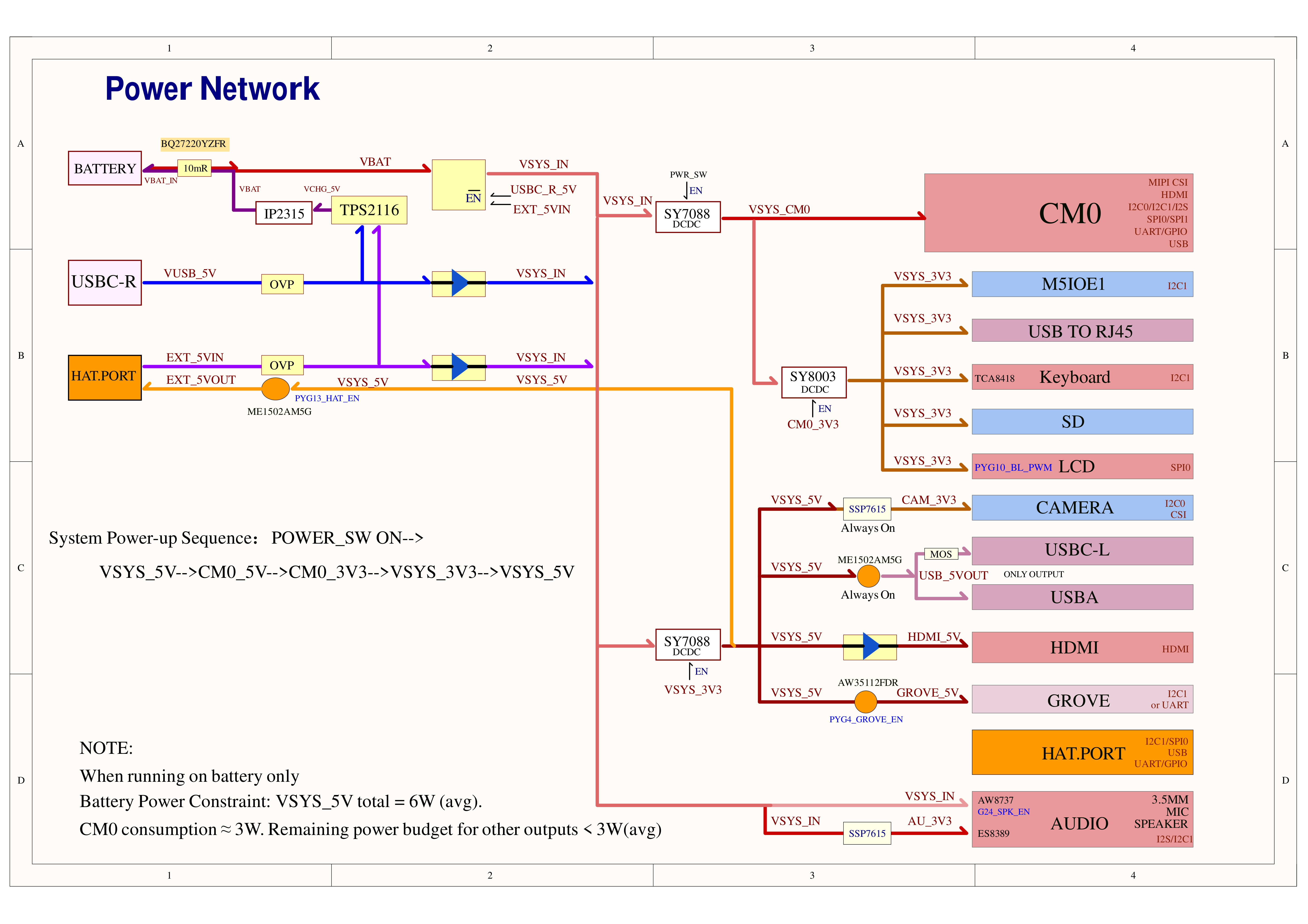
- Power network
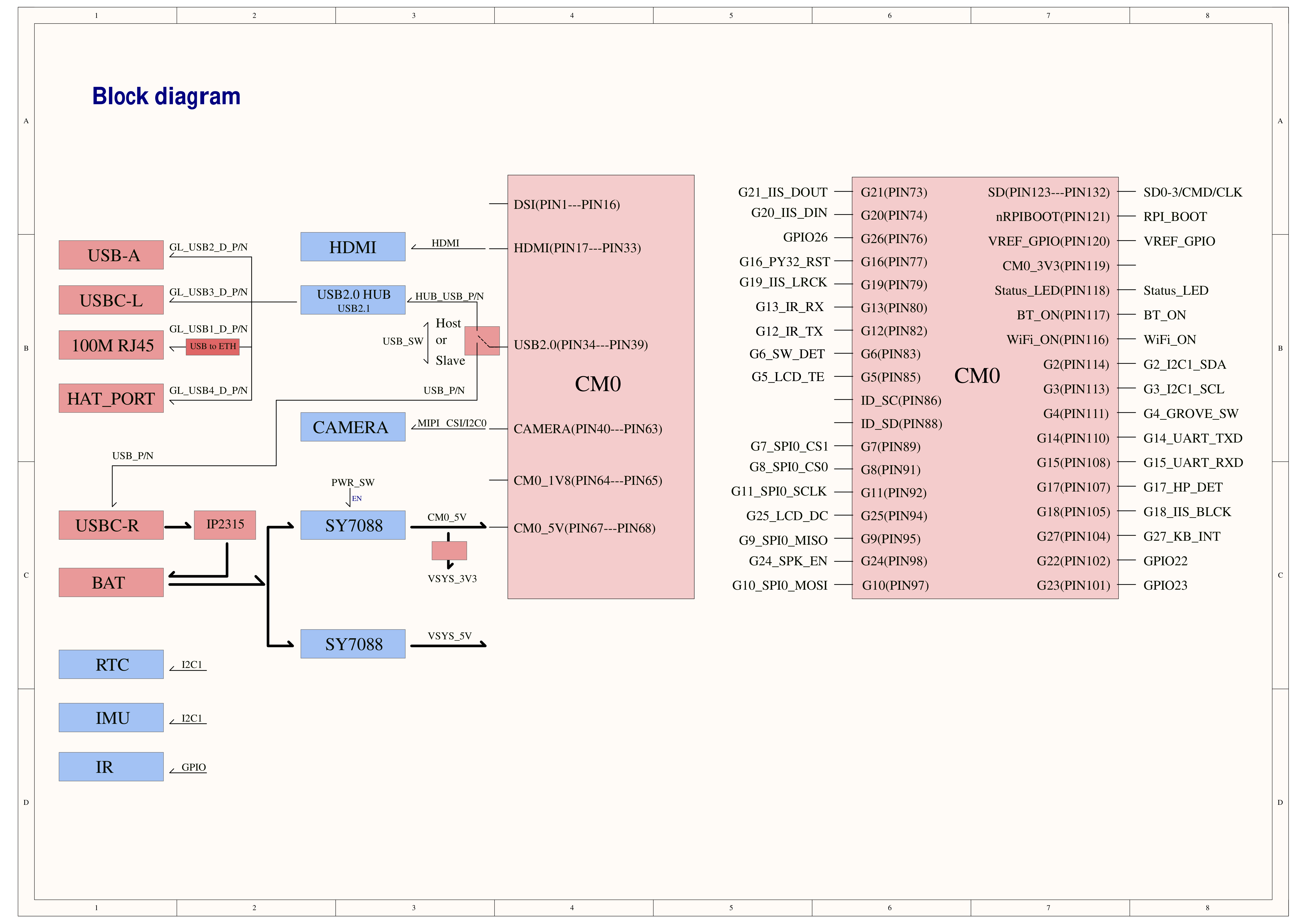
- System block diagram
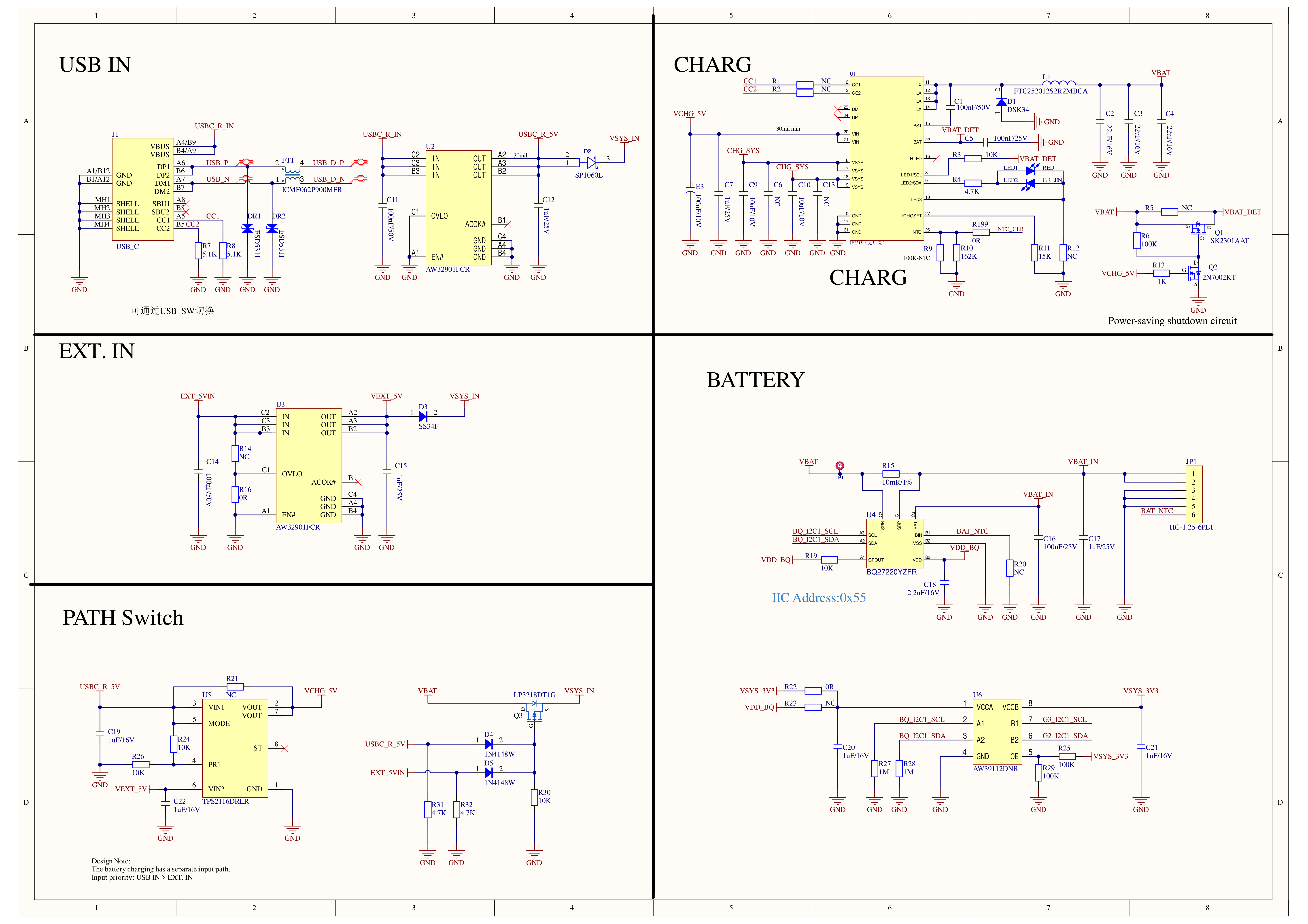
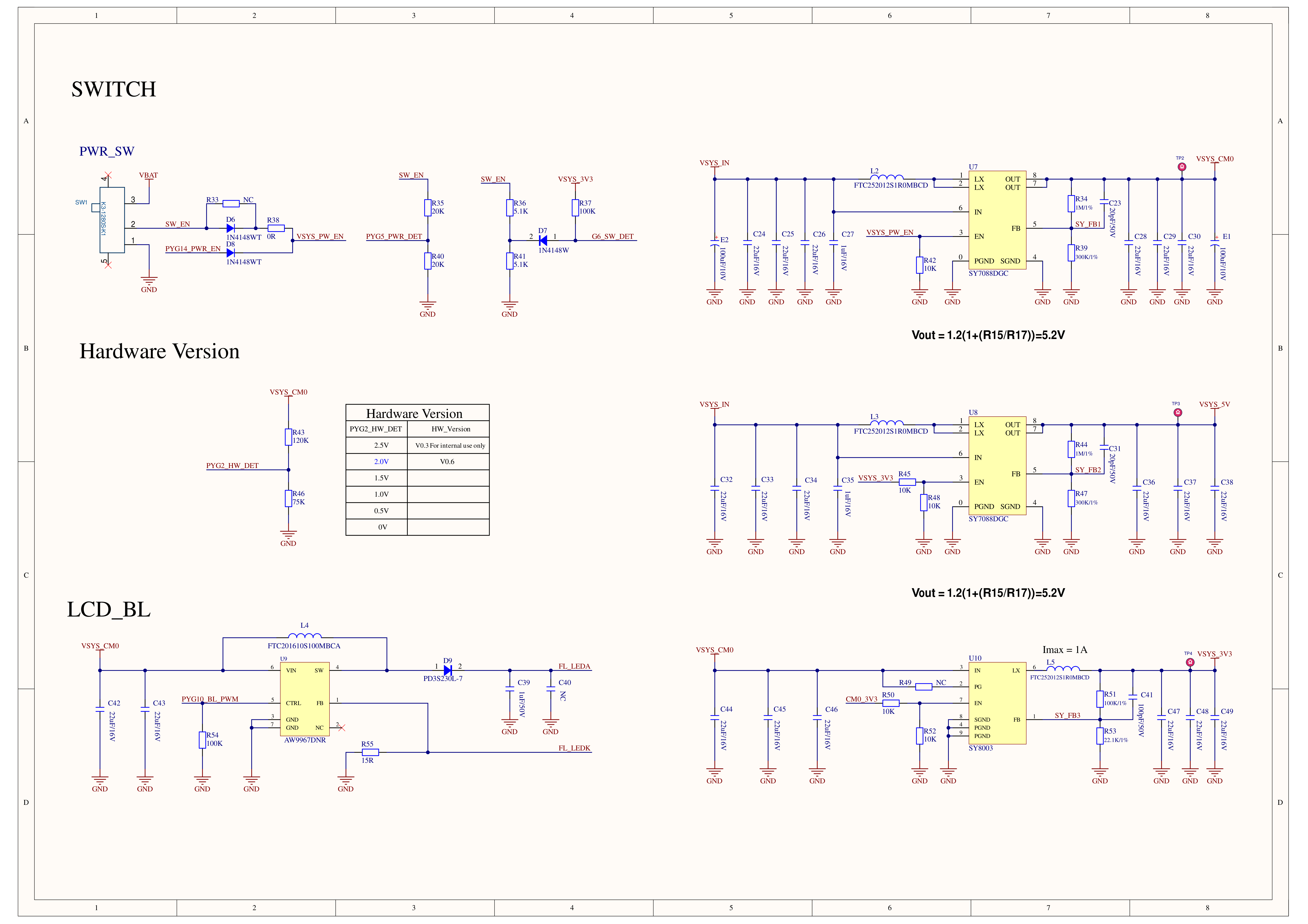
This section covers the power path and power switches. Schematic pages 02-05 show the USB-C and EXT inputs, IP2315 charger, BQ27220, power-path switching, SY7088/SY8003 buck converters, and OVP on each rail. The system power-up sequence is VSYS_5V -> CM0_5V -> CM0_3V3 -> VSYS_3V3 -> VSYS_5V.
- USB input, charging, battery, and power path
- Power switches and regulation path
Inspect power-related nodes on the system:
# Show regulator names, status, and output voltage
$ grep -H . /sys/class/regulator/*/{name,state,microvolts} 2>/dev/null
/sys/class/regulator/regulator.0/name:regulator-dummy
/sys/class/regulator/regulator.1/name:backlight-vcc
/sys/class/regulator/regulator.2/name:cam-dummy-reg
/sys/class/regulator/regulator.3/name:3v3
/sys/class/regulator/regulator.4/name:5v0
/sys/class/regulator/regulator.5/name:cam1-reg
/sys/class/regulator/regulator.5/state:disabled
/sys/class/regulator/regulator.1/microvolts:3300000
/sys/class/regulator/regulator.3/microvolts:3300000
/sys/class/regulator/regulator.4/microvolts:5000000
The BQ27220 fuel-gauge is managed by the kernel power-supply driver. Relevant sysfs entries are shown below:
- List battery and power-supply devices
$ ls /sys/class/power_supply
bq27220-0- Show battery status
$ cat /sys/class/power_supply/bq27220-0/status
Charging- Show remaining capacity (%)
$ cat /sys/class/power_supply/bq27220-0/capacity
83- Show battery voltage in microvolts
$ cat /sys/class/power_supply/bq27220-0/voltage_now
3868000- Show battery current in microamps
$ cat /sys/class/power_supply/bq27220-0/current_now
289000- Show battery temperature, usually in 0.1 °C
$ cat /sys/class/power_supply/bq27220-0/temp
309
Use these files as the reference for application output.
Page 6 shows the CM0 pin multiplexing.
- Pin multiplexing
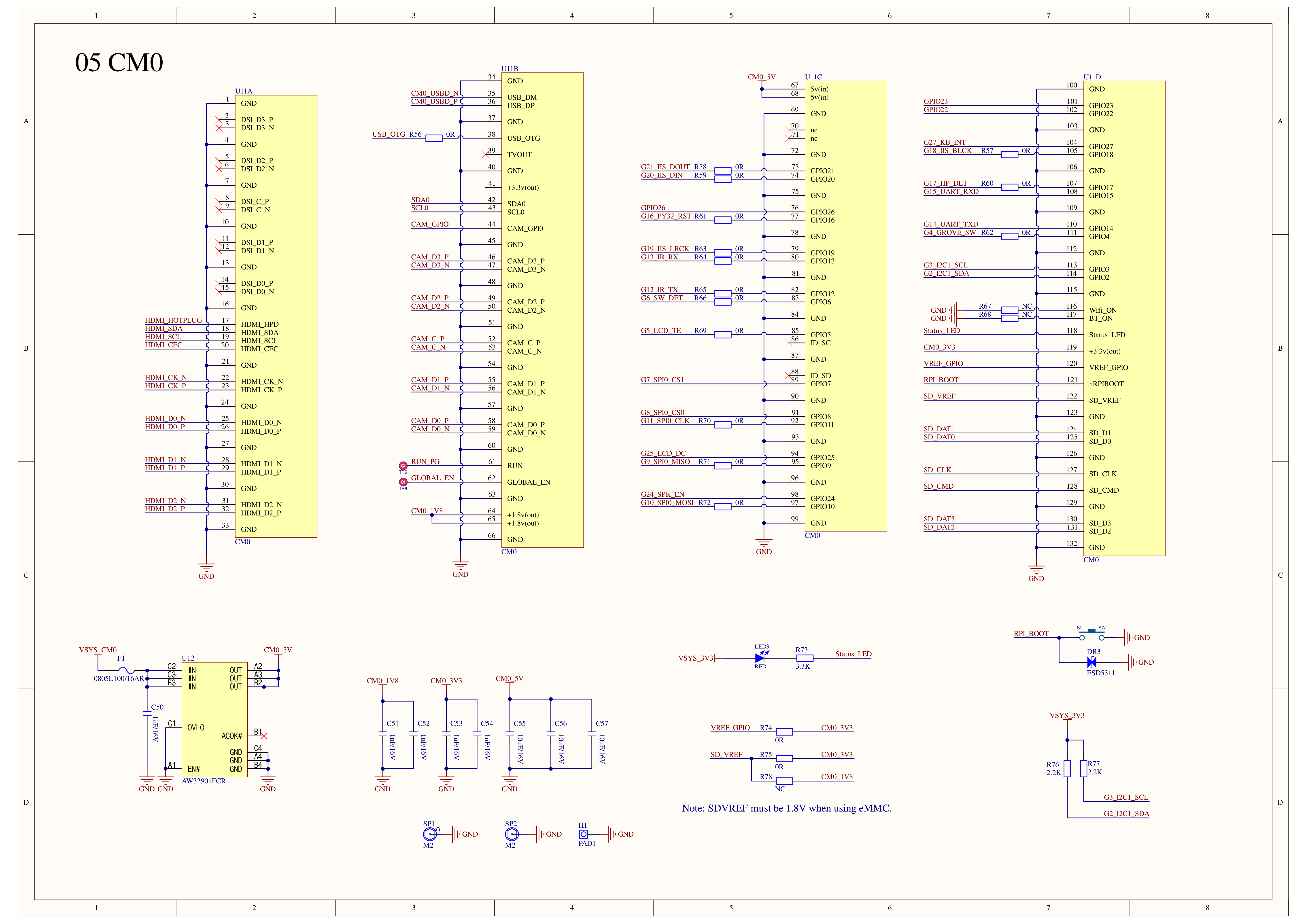
Inspect GPIO debugfs on the device:
$ cat /sys/kernel/debug/gpio
gpiochip0: 54 GPIOs, parent: platform/3f200000.gpio, pinctrl-bcm2835:
 gpio-0   (ID_SDA              )
 gpio-1   (ID_SCL              )
 gpio-2   (GPIO2               )
 gpio-3   (GPIO3               )
 gpio-4   (GPIO4               |grove_fun           ) out lo
 gpio-5   (GPIO5               )
 gpio-6   (GPIO6               |irq                 ) in  hi IRQ
 gpio-7   (GPIO7               |spi0 CS1            ) out hi ACTIVE LOW
 gpio-8   (GPIO8               |spi0 CS0            ) out hi ACTIVE LOW
 gpio-9   (GPIO9               )
 gpio-10  (GPIO10              )
 gpio-11  (GPIO11              )
 gpio-12  (GPIO12              |gpio-ir-transmitter@) out lo
 gpio-13  (GPIO13              |ir-receiver@d       ) in  hi IRQ ACTIVE LOW
 gpio-14  (GPIO14              )
 gpio-15  (GPIO15              )
 gpio-16  (GPIO16              )
 gpio-17  (GPIO17              |Headphone detection ) in  lo IRQ
 gpio-18  (GPIO18              )
 gpio-19  (GPIO19              )
 gpio-20  (GPIO20              )
 gpio-21  (GPIO21              )
 gpio-22  (GPIO22              )
 gpio-23  (GPIO23              )
 gpio-24  (GPIO24              |enable              ) out hi
 gpio-25  (GPIO25              |dc                  ) out hi
 gpio-26  (GPIO26              )
 gpio-27  (GPIO27              |interrupt           ) in  hi IRQ
 gpio-28  (HDMI_HPD_N          |hpd                 ) in  hi ACTIVE LOW
 gpio-29  (STATUS_LED_N        |ACT                 ) out hi ACTIVE LOW
 gpio-30  (BT_CTS              )
 gpio-31  (BT_RTS              )
 gpio-32  (BT_TXD              )
 gpio-33  (BT_RXD              )
 gpio-34  (WIFI_SD_CLK         )
 gpio-35  (WIFI_SD_CMD         )
 gpio-36  (WIFI_SD_D0          )
 gpio-37  (WIFI_SD_D1          )
 gpio-38  (WIFI_SD_D2          )
 gpio-39  (WIFI_SD_D3          )
 gpio-40  (CAM_GPIO            |cam1_regulator      ) out lo
 gpio-41  (WL_ON               )
 gpio-42  (BT_ON               |shutdown            ) out hi
 gpio-43  (EMMC_REENABLE_N     )
 gpio-44  (SDA0                )
 gpio-45  (SCL0                )
 gpio-46  (INT_SDA             )
 gpio-47  (INT_SCL             )
 gpio-48  (SD_CLK              )
 gpio-49  (SD_CMD              )
 gpio-50  (SD_D0               )
 gpio-51  (SD_D1               )
 gpio-52  (SD_D2               )
 gpio-53  (SD_D3               )
 ...
The device tree also exports CM0 and board information to sysfs:
- Show board model
$ cat /sys/firmware/devicetree/base/model
Raspberry Pi Compute Module 0 Rev 1.0- Show compatible device names
$ cat /sys/firmware/devicetree/base/compatible
raspberrypi,0-compute-modulebrcm,bcm2837- Linux kernel version
$ uname -r
6.18.34-v8
GPIO names and pinmux settings come from the device tree. Before adding or modifying a peripheral, verify the corresponding overlay in m5stack-linux-dtoverlays.
Wi-Fi and Bluetooth are integrated into the CM0 module. The CM0 section of the schematic shows WiFi_ON, BT_ON, and the wireless interfaces. After Linux boots, Wi-Fi appears as a network interface and Bluetooth as an HCI device. Applications typically manage them through NetworkManager and BlueZ.
- Check whether wireless devices are blocked
#
$ rfkill list
0: hci0: Bluetooth
	Soft blocked: no
	Hard blocked: no
1: phy0: Wireless LAN
	Soft blocked: no
Hard blocked: no- List all network interfaces
$ ip link
1: lo: <LOOPBACK,UP,LOWER_UP> mtu 65536 qdisc noqueue state UNKNOWN mode DEFAULT group default qlen 1000
    link/loopback 00:00:00:00:00:00 brd 00:00:00:00:00:00
2: eth0: <BROADCAST,MULTICAST,UP,LOWER_UP> mtu 1500 qdisc fq_codel state UP mode DEFAULT group default qlen 1000
    link/ether **:**:**:**:**:** brd ff:ff:ff:ff:ff:ff
3: wlan0: <NO-CARRIER,BROADCAST,MULTICAST,UP> mtu 1500 qdisc fq_codel state DOWN mode DORMANT group default qlen 1000
link/ether **:**:**:**:**:** brd ff:ff:ff:ff:ff:ff- Show Wi-Fi device status
$ nmcli device status
DEVICE         TYPE      STATE                   CONNECTION
eth0           ethernet  connected               Wired connection 1
lo             loopback  connected (externally)  lo
wlan0          wifi      disconnected            --
p2p-dev-wlan0 wifi-p2p disconnected --- List nearby Wi-Fi networks
$ nmcli device wifi list
IN-USE  BSSID              SSID                          MODE   CHAN  RATE        SIGNAL  BARS  SECURITY
        **:**:**:**:**:**  DeepSpace9                    Infra  9     270 Mbit/s  100     ▂▄▆█  WPA2
        **:**:**:**:**:**  M5****Lab                     Infra  11    270 Mbit/s  100     ▂▄▆█  WPA2
        **:**:**:**:**:**  o****n                        Infra  11    405 Mbit/s  94      ▂▄▆█  WPA1 WPA2
        **:**:**:**:**:**  i**t                          Infra  1     270 Mbit/s  85      ▂▄▆█  WPA2
        **:**:**:**:**:**  D***JIXZ                      Infra  11    130 Mbit/s  80      ▂▄▆_  WPA1 WPA2
        **:**:**:**:**:**  M5Stack                       Infra  6     130 Mbit/s  45      ▂▄__  WPA1 WPA2
        **:**:**:**:**:**  M5Stack-Guest                 Infra  6     130 Mbit/s  35      ▂▄__  WPA1 WPA2
**:**:**:**:**:** M5Stack Infra 6 130 Mbit/s 30 ▂___ WPA1 WPA2- List Bluetooth controllers
$ bluetoothctl list
Controller **:**:**:**:**:** cardputerzero [default]- Show detailed Bluetooth controller information
$ bluetoothctl show
Controller **:**:**:**:**:** (public)
	Manufacturer: 0x0131 (305)
	Version: 0x0b (11)
	Name: cardputerzero
	Alias: cardputerzero
	Class: 0x00400000 (4194304)
	Powered: yes
	PowerState: on
	Discoverable: no
	DiscoverableTimeout: 0x000000b4 (180)
	Pairable: no
	UUID: Generic Attribute Profile (00001801-0000-1000-8000-00805f9b34fb)
	UUID: Generic Access Profile    (00001800-0000-1000-8000-00805f9b34fb)
	UUID: SIM Access                (0000112d-0000-1000-8000-00805f9b34fb)
	UUID: PnP Information           (00001200-0000-1000-8000-00805f9b34fb)
	UUID: A/V Remote Control Target (0000110c-0000-1000-8000-00805f9b34fb)
	UUID: A/V Remote Control        (0000110e-0000-1000-8000-00805f9b34fb)
	UUID: Device Information        (0000180a-0000-1000-8000-00805f9b34fb)
	Modalias: usb:v1D6Bp0246d0552
	Discovering: no
	Roles: central
	Roles: peripheral
Advertising Features:
	ActiveInstances: 0x00 (0)
	SupportedInstances: 0x05 (5)
	SupportedIncludes: tx-power
	SupportedIncludes: appearance
	SupportedIncludes: local-name
	SupportedCapabilities.MinTxPower: 0xfffffff0 (-16)
	SupportedCapabilities.MaxTxPower: 0x000c (12)
	SupportedCapabilities.MaxAdvLen: 0x1f (31)
	SupportedCapabilities.MaxScnRspLen: 0x1f (31)
Note
Use libnm-dev to manage network devices and connections; see the usage guide for development details. bluez is the official Linux Bluetooth protocol stack; see the BlueZ documentation for development details.
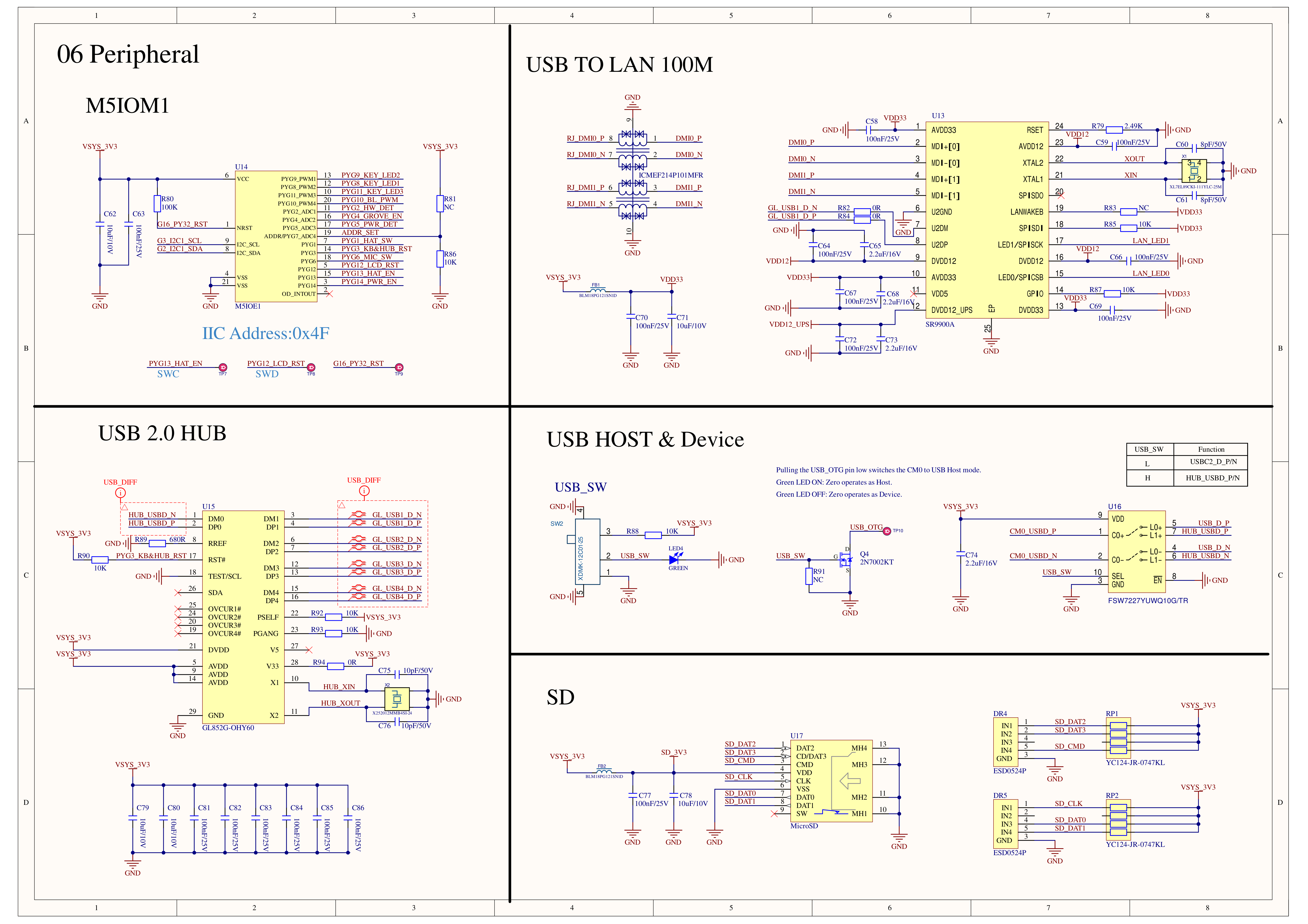
The upper-left area of page 7 shows the M5IOE1 I/O expander pinout. M5IOE1 communicates with CM0 over I2C1 at address 0x4F. It controls board functions including EXT USB/GPIO switching, Grove 5 V, EXT 5 V output enable, and keyboard LEDs.
Note
M5IOE1 is a multifunction I/O expander developed by M5Stack. It uses a Puya PY32L020 MCU programmed with CardputerZero-specific firmware and has I2C address 0x4F.
- M5IOE1, USB, Ethernet, and SD
- List I2C buses on the system
$ i2cdetect -l
i2c-0	i2c       	i2c-11-mux (chan_id 0)          	I2C adapter
i2c-1	i2c       	bcm2835 (i2c@7e804000)          	I2C adapter
i2c-2	i2c       	bcm2835 (i2c@7e805000)          	I2C adapter
i2c-10	i2c       	i2c-11-mux (chan_id 1)          	I2C adapter
i2c-11	i2c       	bcm2835 (i2c@7e205000)          	I2C adapter
Note
The HAT I2C and Grove I2C connectors both use i2c-1.
- Scan I2C1
$ i2cdetect -y 1
     0  1  2  3  4  5  6  7  8  9  a  b  c  d  e  f
00:                         -- -- -- -- -- -- -- --
10: UU -- -- -- -- -- -- -- -- -- -- -- -- -- -- --
20: -- -- -- -- -- -- -- -- -- -- -- -- -- -- -- --
30: -- -- UU -- UU -- -- -- -- -- -- -- -- -- -- --
40: -- -- -- -- -- -- -- -- -- -- -- -- -- -- -- UU
50: -- -- -- -- -- UU -- -- -- -- -- -- -- -- -- --
60: -- -- -- -- -- -- -- -- UU -- -- -- -- -- -- --
70: -- -- -- -- -- -- -- --
Warning
UU at an address means the device is claimed by a kernel driver. Do not access it directly from user space; use the driver's sysfs interface. A hexadecimal address means the device is unclaimed and can be accessed from user space.
- Inspect pin information with gpiod
$ gpioinfo -c 2
gpiochip2 - 14 lines:
	line   0:	unnamed         	output consumer=ext_usb_gpio_fun
	line   1:	unnamed         	input
	line   2:	unnamed         	input
	line   3:	unnamed         	output consumer=grove_5v_out
	line   4:	unnamed         	input
	line   5:	unnamed         	input
	line   6:	unnamed         	input
	line   7:	unnamed         	output active-low consumer=capslock-led
	line   8:	unnamed         	output active-low consumer=fn-led
	line   9:	unnamed         	output
	line  10:	unnamed         	output active-low consumer=tables-sel-led
	line  11:	unnamed         	output active-low consumer=disabled
	line  12:	unnamed         	output consumer=ext_5v_out
line 13: unnamed output- Or inspect debugfs on the device
$ cat /sys/kernel/debug/gpio
...
gpiochip2: 14 GPIOs, parent: i2c/1-004f, m5ioe1, can sleep:
 gpio-0   (                    |ext_usb_gpio_fun    ) out lo
 gpio-3   (                    |grove_5v_out        ) out lo
 gpio-7   (                    |capslock-led        ) out hi ACTIVE LOW
 gpio-8   (                    |fn-led              ) out hi ACTIVE LOW
 gpio-10  (                    |tables-sel-led      ) out hi ACTIVE LOW
 gpio-11  (                    |disabled            ) out hi ACTIVE LOW
 gpio-12  (                    |ext_5v_out          ) out lo
The following /sys/class/leds/ nodes provide simple Linux controls for M5IOE1 functions:
- List the control nodes exported by M5IOE1
$ ls /sys/class/leds/ext_usb_gpio_fun /sys/class/leds/grove_5v_out /sys/class/leds/ext_5v_out /sys/class/leds/grove_fun
/sys/class/leds/ext_5v_out:
brightness  device  max_brightness  power  subsystem  trigger  uevent

/sys/class/leds/ext_usb_gpio_fun:
brightness  device  max_brightness  power  subsystem  trigger  uevent

/sys/class/leds/grove_5v_out:
brightness  device  max_brightness  power  subsystem  trigger  uevent

/sys/class/leds/grove_fun:
brightness device max_brightness power subsystem trigger uevent- Show the current EXT 5 V state
$ cat /sys/class/leds/ext_5v_out/brightness
0
0 means off; 1 (255) means on.
- Show the current Grove 5 V state
cat /sys/class/leds/grove_5v_out/brightness
0
0 means off; 1 (255) means on.
- Show the HAT USB/GPIO function selection
$ cat /sys/class/leds/ext_usb_gpio_fun/brightness
0
0 means GPIO26 and GPIO23 are general-purpose GPIOs; 1 (255) multiplexes them as USB D+ and D-.
- Show the Grove interface function selection
$ cat /sys/class/leds/grove_fun/brightness
0
0 means the Grove port is in UART mode; 1 (255) switches the pins to I2C mode.
Tip
Read or write these files to control power and switch functions. See HAT Port below for details.
The onboard Ethernet uses a USB-to-100 Mbps Ethernet chip. On schematic page 7, its USB side connects to the hub and its network side to the RJ45 jack. Linux registers it as a standard Ethernet interface.
- Check whether the USB Ethernet chip was enumerated
$ lsusb
Bus 001 Device 001: ID 1d6b:0002 Linux Foundation 2.0 root hub
Bus 001 Device 002: ID 05e3:0610 Genesys Logic, Inc. Hub
Bus 001 Device 003: ID 0fe6:9900 ICS Advent USB 10/100 LAN- Show the Ethernet interface name and current status
$ ip link
...
2: eth0: <BROADCAST,MULTICAST,UP,LOWER_UP> mtu 1500 qdisc fq_codel state UP mode DEFAULT group default qlen 1000
    link/ether **:**:**:**:**:** brd ff:ff:ff:ff:ff:ff
...- Show wired connection status in NetworkManager
$ nmcli device status
DEVICE         TYPE      STATE                   CONNECTION
eth0 ethernet connected Wired connection 1- Show the interface IP address
$ ip address show eth0
2: eth0: <BROADCAST,MULTICAST,UP,LOWER_UP> mtu 1500 qdisc fq_codel state UP group default qlen 1000
    link/ether **:**:**:**:**:** brd ff:ff:ff:ff:ff:ff
    inet 192.168.10.105/24 brd 192.168.10.255 scope global dynamic noprefixroute eth0
       valid_lft 38602sec preferred_lft 38602sec
    inet6 ****::****:****:****:****/64 scope link noprefixroute
valid_lft forever preferred_lft forever- Check cable link and negotiated speed
$ ethtool eth0
Settings for eth0:
	Supported ports: [  ]
	Supported link modes:   Not reported
	Supported pause frame use: No
	Supports auto-negotiation: No
	Supported FEC modes: Not reported
	Advertised link modes:  Not reported
	Advertised pause frame use: No
	Advertised auto-negotiation: No
	Advertised FEC modes: Not reported
	Speed: 100Mb/s
	Duplex: Unknown! (255)
	Auto-negotiation: off
	Port: Twisted Pair
	PHYAD: 0
	Transceiver: internal
	MDI-X: Unknown
netlink error: Operation not permitted
        Current message level: 0x00000007 (7)
                               drv probe link
Link detected: yes- Test gateway reachability
$ ping -c 4 192.168.10.1
PING 192.168.10.1 (192.168.10.1) 56(84) bytes of data.
64 bytes from 192.168.10.1: icmp_seq=1 ttl=64 time=0.947 ms
64 bytes from 192.168.10.1: icmp_seq=2 ttl=64 time=0.668 ms
64 bytes from 192.168.10.1: icmp_seq=3 ttl=64 time=0.902 ms
64 bytes from 192.168.10.1: icmp_seq=4 ttl=64 time=0.936 ms

--- 192.168.10.1 ping statistics ---
4 packets transmitted, 4 received, 0% packet loss, time 3009ms
rtt min/avg/max/mdev = 0.668/0.863/0.947/0.113 ms
Note
Replace the gateway address with the one used on your network.
The onboard hub expands one CM0 USB 2.0 port to USB-A, the left USB-C port, onboard Ethernet, and HAT. The hub must work correctly for these peripherals to enumerate.
# Show the USB bus and hub ports as a tree
lsusb -tThe USB_SW signal in the center of schematic page 7 switches the CM0 USB host/device path.
Note
This switches the CM0's own USB role; it is separate from the ext_usb_gpio_fun signal used by EXT.HAT-USB. USB_SW is not software-controlled. A DIP switch between the left USB Type-C and USB Type-A connectors selects it physically.
- Show the USB bus in host mode
$ lsusb -t
/:  Bus 001.Port 001: Dev 001, Class=root_hub, Driver=dwc2/1p, 480M
    |__ Port 001: Dev 002, If 0, Class=Hub, Driver=hub/4p, 480M
        |__ Port 001: Dev 003, If 0, Class=Communications, Driver=cdc_ether, 480M
|__ Port 001: Dev 003, If 1, Class=CDC Data, Driver=cdc_ether, 480M- List the system USB Device Controllers and show UDC state in device mode
$ ls /sys/class/udc
3f980000.usb
$ cat /sys/class/udc/3f980000.usb/state
not attached- Monitor USB device insertion, removal, and re-enumeration
sudo udevadm monitor --kernel --subsystem-match=usb
monitor will print the received events for:
KERNEL - the kernel uevent

KERNEL[5286.792102] add      /devices/platform/soc/3f980000.usb/usb1/1-1/1-1.3 (usb)
KERNEL[5286.796438] add      /devices/platform/soc/3f980000.usb/usb1/1-1/1-1.3/1-1.3:1.0 (usb)
KERNEL[5286.798684] bind     /devices/platform/soc/3f980000.usb/usb1/1-1/1-1.3/1-1.3:1.0 (usb)
KERNEL[5286.799411] bind     /devices/platform/soc/3f980000.usb/usb1/1-1/1-1.3 (usb)
KERNEL[5291.492659] unbind   /devices/platform/soc/3f980000.usb/usb1/1-1/1-1.3/1-1.3:1.0 (usb)
KERNEL[5291.492826] remove   /devices/platform/soc/3f980000.usb/usb1/1-1/1-1.3/1-1.3:1.0 (usb)
KERNEL[5291.496268] unbind   /devices/platform/soc/3f980000.usb/usb1/1-1/1-1.3 (usb)
KERNEL[5291.496451] remove   /devices/platform/soc/3f980000.usb/usb1/1-1/1-1.3 (usb)
In host mode, the system enumerates external USB devices. In device mode, another host can identify the CM0 as a USB gadget. The role is typically configured by the device tree and system services.
The MicroSD card connects directly to the CM0 SDIO pins. Linux registers it as a /dev/mmcblk* block device, which the filesystem then mounts at a directory.
- Show the SD card block device, filesystem, and mount point
$ lsblk
NAME        MAJ:MIN RM  SIZE RO TYPE MOUNTPOINTS
loop0         7:0    0  415M  0 loop
mmcblk0     179:0    0 29.1G  0 disk
├─mmcblk0p1 179:1    0  128M  0 part /boot/firmware
└─mmcblk0p2 179:2    0   29G  0 part /
zram0 254:0 0 415M 0 disk [SWAP]- List mmc device nodes
$ ls /dev/mmcblk*
/dev/mmcblk0 /dev/mmcblk0p1 /dev/mmcblk0p2- Show current mounts
$ findmnt
TARGET                                        SOURCE         FSTYPE      OPTIONS
/                                             /dev/mmcblk0p2 ext4        rw,noatime
├─/sys                                        sysfs          sysfs       rw,nosuid,nodev,noexec,relatime
│ ├─/sys/kernel/security                      securityfs     securityfs  rw,nosuid,nodev,noexec,relatime
│ ├─/sys/fs/cgroup                            cgroup2        cgroup2     rw,nosuid,nodev,noexec,relatime,nsdelegate,memory_recursiveprot
│ ├─/sys/fs/pstore                            none           pstore      rw,nosuid,nodev,noexec,relatime
│ ├─/sys/fs/bpf                               bpf            bpf         rw,nosuid,nodev,noexec,relatime,mode=700
│ ├─/sys/kernel/debug                         debugfs        debugfs     rw,nosuid,nodev,noexec,relatime
│ ├─/sys/kernel/tracing                       tracefs        tracefs     rw,nosuid,nodev,noexec,relatime
│ ├─/sys/fs/fuse/connections                  fusectl        fusectl     rw,nosuid,nodev,noexec,relatime
│ └─/sys/kernel/config                        configfs       configfs    rw,nosuid,nodev,noexec,relatime
├─/proc                                       proc           proc        rw,relatime
│ └─/proc/sys/fs/binfmt_misc                  systemd-1      autofs      rw,relatime,fd=37,pgrp=1,timeout=0,minproto=5,maxproto=5,direct,pipe_ino=38
│   └─/proc/sys/fs/binfmt_misc                binfmt_misc    binfmt_misc rw,nosuid,nodev,noexec,relatime
├─/dev                                        udev           devtmpfs    rw,nosuid,relatime,size=173656k,nr_inodes=43414,mode=755
│ ├─/dev/pts                                  devpts         devpts      rw,nosuid,noexec,relatime,gid=5,mode=600,ptmxmode=000
│ ├─/dev/shm                                  tmpfs          tmpfs       rw,nosuid,nodev
│ └─/dev/mqueue                               mqueue         mqueue      rw,nosuid,nodev,noexec,relatime
├─/run                                        tmpfs          tmpfs       rw,nosuid,nodev,noexec,relatime,size=85196k,mode=755
│ ├─/run/lock                                 tmpfs          tmpfs       rw,nosuid,nodev,noexec,relatime,size=5120k
│ ├─/run/user/103                             tmpfs          tmpfs       rw,nosuid,nodev,relatime,size=42596k,nr_inodes=10649,mode=700,uid=103,gid=1
│ ├─/run/user/1000                            tmpfs          tmpfs       rw,nosuid,nodev,relatime,size=42596k,nr_inodes=10649,mode=700,uid=1000,gid=
│ └─/run/credentials/systemd-journald.service tmpfs          tmpfs       ro,nosuid,nodev,noexec,relatime,nosymfollow,size=1024k,nr_inodes=1024,mode=
├─/boot/firmware                              /dev/mmcblk0p1 vfat        rw,relatime,fmask=0022,dmask=0022,codepage=437,iocharset=ascii,shortname=mi
└─/tmp tmpfs tmpfs rw,nosuid,nodev,nr_inodes=1048576- Show free disk space
$ df -h
Filesystem      Size  Used Avail Use% Mounted on
udev            170M     0  170M   0% /dev
tmpfs            84M  2.7M   81M   4% /run
/dev/mmcblk0p2   29G  1.9G   26G   7% /
tmpfs           208M  108K  208M   1% /dev/shm
tmpfs           5.0M  8.0K  5.0M   1% /run/lock
tmpfs           1.0M     0  1.0M   0% /run/credentials/systemd-journald.service
/dev/mmcblk0p1  128M   24M  105M  19% /boot/firmware
tmpfs           208M     0  208M   0% /tmp
tmpfs            42M   16K   42M   1% /run/user/1000
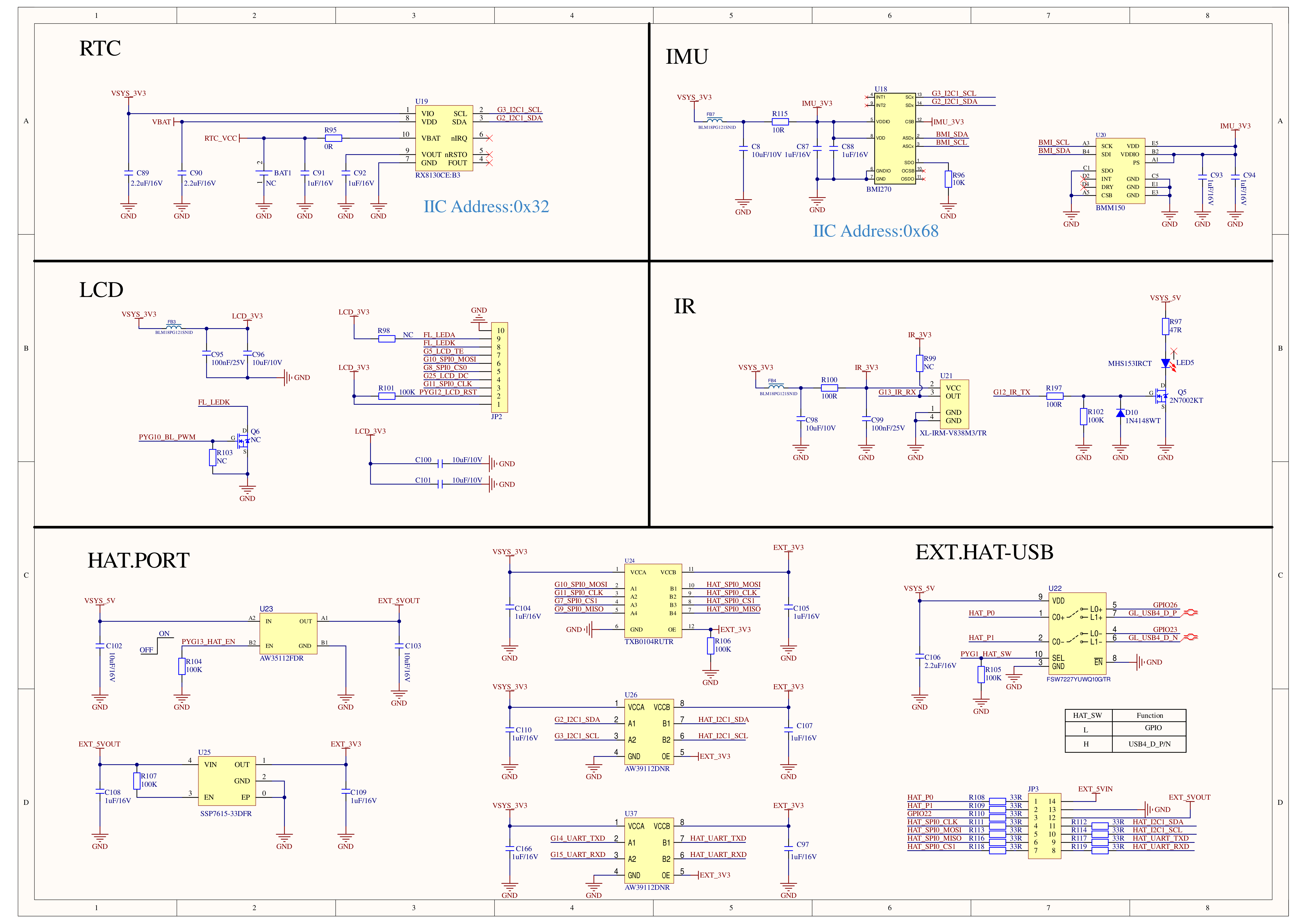
tmpfs 42M 20K 42M 1% /run/user/103The RTC is in the upper-left of schematic page 8. It connects to I2C1 at address 0x32. The RTC keeps time while powered off; Linux normally registers it as /dev/rtc0 and exposes status under /sys/class/rtc/.
- RTC, IMU, LCD, IR, and HAT
- List RTC device nodes
$ ls /dev/rtc /dev/rtc0
/dev/rtc  /dev/rtc0
$ sudo hwclock --show
2026-09-08 11:25:23.260675+08:00- Show the RTC name
$ cat /sys/class/rtc/rtc0/name
rtc-ds1307 1-0032
Note
The actual RTC hardware is RX8130CE.
The BMI270 six-axis IMU is in the upper-right of schematic page 8 at I2C address 0x68. Some configurations also include a BMM150 magnetometer. Once the kernel driver loads, Linux IIO exposes raw and scale values for the sensors.
- List IIO devices
$ ls /sys/bus/iio/devices
iio:device0 iio:device1 iio:device- Show IIO device names
$ cat /sys/bus/iio/devices/iio:device0/name
bmi27
$ cat /sys/bus/iio/devices/iio:device1/name
m5ioe1
$ cat /sys/bus/iio/devices/iio:device2/name
bmm150
Note
Select the directory and files by the actual device name. iio:deviceN numbers may change with probe order.
- Read the raw X-axis acceleration
cat /sys/bus/iio/devices/iio:device0/in_accel_x_raw
-351- Read the acceleration scale
cat /sys/bus/iio/devices/iio:device0/in_accel_scale
0.002394- Read the raw X-axis angular velocity
$ cat /sys/bus/iio/devices/iio:device0/in_anglvel_x_raw
131- Read the gyroscope scale
$ cat /sys/bus/iio/devices/iio:device0/in_anglvel_scale
0.001065
Tip
Read the other axes in the same way. Compute physical values as $raw \times scale$ and calibrate the data. See the Compass App for a reference implementation.
The LCD uses SPI0 for image transfer. G25_LCD_DC selects commands or data, G5_LCD_TE provides frame synchronization, and PYG10_BL_PWM controls the backlight.
- List framebuffer devices
ls /dev/fb*
/dev/fb0 /dev/fb_lcd- Show framebuffer parameters
$ fbset -i

mode "320x170"
    geometry 320 170 320 170 16
    timings 0 0 0 0 0 0 0
    rgba 5/11,6/5,5/0,0/0
endmode

Frame buffer device information:
    Name        : panel-mipi-dbid
    Address     : 0
    Size        : 110592
    Type        : PACKED PIXELS
    Visual      : TRUECOLOR
    XPanStep    : 1
    YPanStep    : 1
    YWrapStep   : 0
    LineLength  : 640
    Accelerator : No
Note
Install the fbset utility separately with sudo apt install fbset.
- List DRM devices
$ ls /dev/dri
by-path card0 card1 cardputer-zero-internal renderD128- Show the current backlight brightness
$ cat /sys/class/backlight/backlight/brightness
75- Show the maximum backlight brightness
$ cat /sys/class/backlight/backlight/max_brightness
100- Set backlight brightness to 50%
$ echo 50 | sudo tee /sys/class/backlight/backlight/brightness
50
Tip
On modern Linux, DRM is the preferred backend for graphics operations.
IR receive uses G13_IR_RX, and IR transmit uses G12_IR_TX. After the device tree loads, Linux rc-core creates devices under /sys/class/rc/ and provides /dev/lirc* character devices.
- List IR remote-control devices
$ ls /sys/class/rc
rc0 rc1 rc2- List LIRC device nodes
$ ls /dev/lirc*
/dev/lirc0 /dev/lirc1- Show IR driver and device names
$ cat /sys/class/rc/rc0/uevent
DRV_NAME=gpio-ir-tx
DEV_NAME=GPIO IR Bit Banging Transmitter
$ cat /sys/class/rc/rc1/uevent
NAME=rc-rc6-mce
DRV_NAME=gpio_ir_recv
DEV_NAME=gpio_ir_recv
Tip
liblirc-dev is a user-space library for IR devices. See the liblirc documentation.
HAT.PORT provides controllable 5 V and 3.3 V power, I2C1, SPI0, UART, GPIO, and USB. Level shifters connect the CM0's 3.3 V signals to the external connector. Before using an expansion module, verify its voltage, interface mode, and power consumption.
- Show the current HAT 5 V state
cat /sys/class/leds/ext_5v_out/brightness- List SPI devices
$ ls /dev/spidev*
/dev/spidev0.1
Note
The top HAT connector uses GPIO7 as CS1; CS0 is assigned to the LCD by default.
- List UART devices
$ ls /dev/ttyS*
/dev/ttyS0- Inspect I2C1 devices
$ i2cdetect -y 1- Show the current ownership of GPIO22, GPIO23, and GPIO26
$ gpioinfo -c 0
gpiochip0 - 54 lines:
    ...
	line  22:	"GPIO22"        	input
	line  23:	"GPIO23"        	input
	line  26:	"GPIO26"        	input
    ...
The following power commands supply the external module. Connect the module and check for shorts before running them:
- Enable HAT 5 V output
echo 1 | sudo tee /sys/class/leds/ext_5v_out/brightness- Disable HAT 5 V output
echo 0 | sudo tee /sys/class/leds/ext_5v_out/brightnessEXT.HAT-USB uses an analog switch to select USB or GPIO. GPIO mode exposes GPIO22, GPIO23, and GPIO26; USB mode connects them to the onboard USB hub.
- Show the USB/GPIO mode control value
cat /sys/class/leds/ext_usb_gpio_fun/brightness- Switch GPIO23/26 to USB mode
echo 1 | sudo tee /sys/class/leds/ext_usb_gpio_fun/brightness- Restore GPIO23/26 to GPIO mode
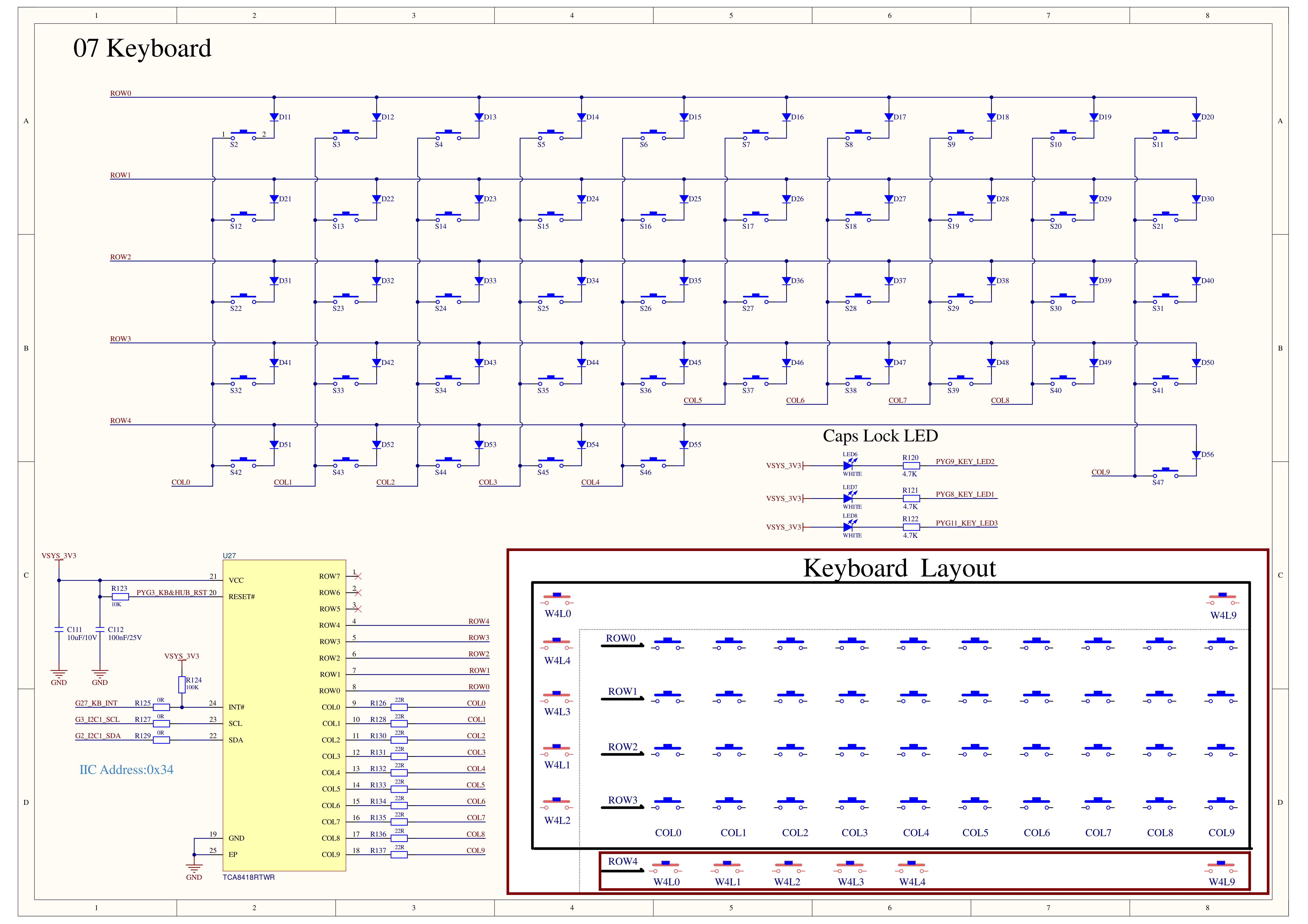
echo 0 | cat /sys/class/leds/ext_usb_gpio_fun/brightnessSchematic page 9 shows the TCA8418 keyboard matrix at I2C address 0x34; G27_KB_INT reports key interrupts to CM0. The kernel driver converts the matrix to standard Linux input events, so applications do not need to scan it directly.
- Keyboard matrix and indicator LEDs
- List all input devices
$ cat /proc/bus/input/devices
...
I: Bus=0018 Vendor=0001 Product=0001 Version=0001
N: Name="tca8418c"
P: Phys=
S: Sysfs=/devices/platform/soc/3f804000.i2c/i2c-1/1-0034/input/input3
U: Uniq=
H: Handlers=sysrq kbd leds event3
B: PROP=0
B: EV=20013
B: KEY=300000000 3800000400 effc87fefffff fbbfffffffffcffe
B: MSC=10
B: LED=2- Show the device name for each input event
$ grep -H . /sys/class/input/event*/device/name
...
/sys/class/input/event3/device/name:tca8418c- List event device nodes
$ ls /dev/input/event*
/dev/input/event0 /dev/input/event1 /dev/input/event2 /dev/input/event3- Monitor key events
sudo evtest /dev/input/event3Note
/dev/input/eventX numbers may change. Select the node by device name and supported key capabilities. Install evtest with sudo apt install evtest; if another application has exclusive access to the keyboard, release it before testing.
The Caps Lock, Fn, and other keyboard LEDs are driven by M5IOE1 and appear under /sys/class/leds/.
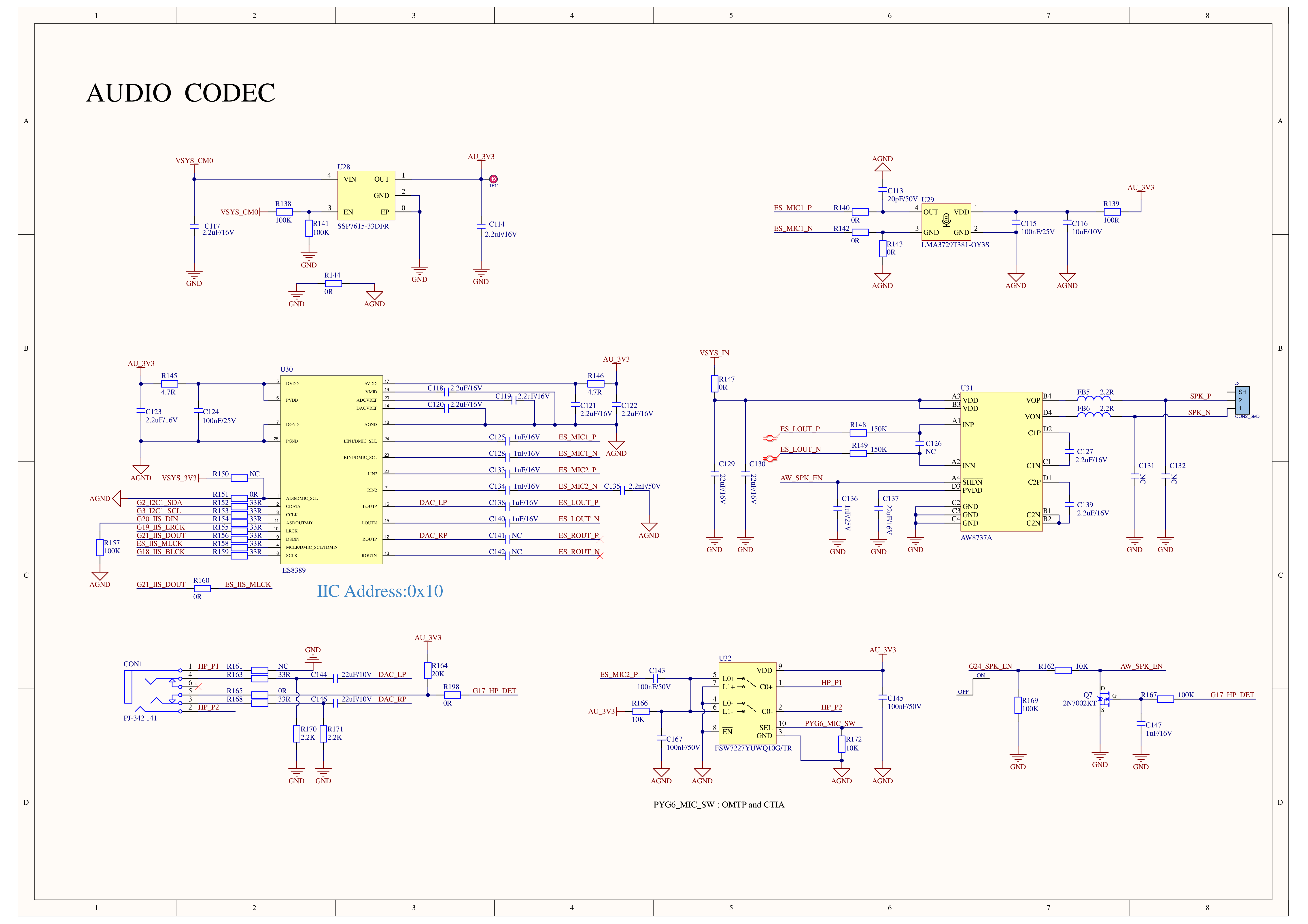
Schematic page 10 shows the ES8390 audio codec at I2C address 0x10. Audio data uses I2S, and G24_SPK_EN controls the speaker amplifier. The 3.5 mm jack also provides headphone detection and microphone-channel switching.
- Audio codec, speaker, headphones, and microphone
- List ALSA sound cards
$ cat /proc/asound/cards
 0 [ES8389Audio    ]: cardputerzero-a - ES8389-Audio
ES8389-Audio- List playback devices
$ aplay -l
**** List of PLAYBACK Hardware Devices ****
card 0: ES8389Audio [ES8389-Audio], device 0: (null)-ES8389 HiFi ES8389 HiFi-0 [(null)-ES8389 HiFi ES8389 HiFi-0]
  Subdevices: 0/1
Subdevice #0: subdevice #0- List capture devices
$ arecord -l
**** List of CAPTURE Hardware Devices ****
card 0: ES8389Audio [ES8389-Audio], device 0: (null)-ES8389 HiFi ES8389 HiFi-0 [(null)-ES8389 HiFi ES8389 HiFi-0]
  Subdevices: 1/1
Subdevice #0: subdevice #0- Play a left/right channel test tone
speaker-test -c 2 -t sine -l 1

speaker-test 1.2.14

Playback device is default
Stream parameters are 48000Hz, S16_LE, 2 channels
Sine wave rate is 440.0000Hz
...
- Record three seconds of audio to a temporary file
$ arecord -f S16_LE -r 48000 -c 2 -d 3 /tmp/audio-test.wav
Recording WAVE '/tmp/audio-test.wav' : Signed 16 bit Little Endian, Rate 48000 Hz, Stereo- Play the recorded file
$ aplay /tmp/audio-test.wav
Headphone insertion detection is also exposed as a Linux input event:
- Find the headphone-detection device and monitor plug/unplug events
grep -n "ES8389-Audio Headphones" /proc/bus/input/devices

# Monitor headphone plug/unplug events; replace eventX with the corresponding node
sudo evtest /dev/input/eventX
Note
On Raspberry Pi, prefer PipeWire at the application layer (with PulseAudio/PJ compatibility) and let PipeWire manage ALSA underneath. Use ALSA directly only when very low latency, exclusive device access, or hardware control is required. miniaudio is suitable for cross-platform playback, recording, and decoding; on Linux, explicitly select its ALSA backend or use it as an in-app engine that outputs through PipeWire/PulseAudio. Avoid having multiple audio stacks compete for the device. Standardize sample rate, channel count, and buffering early, then troubleshoot latency and device issues by layer with pw-top, pactl, and alsamixer.
Schematic page 11 groups the external connectors for easier inspection of connector power, protection components, and signal routing.
- USB-C, USB-A, RJ45, HDMI, camera, Grove, and HAT BTB
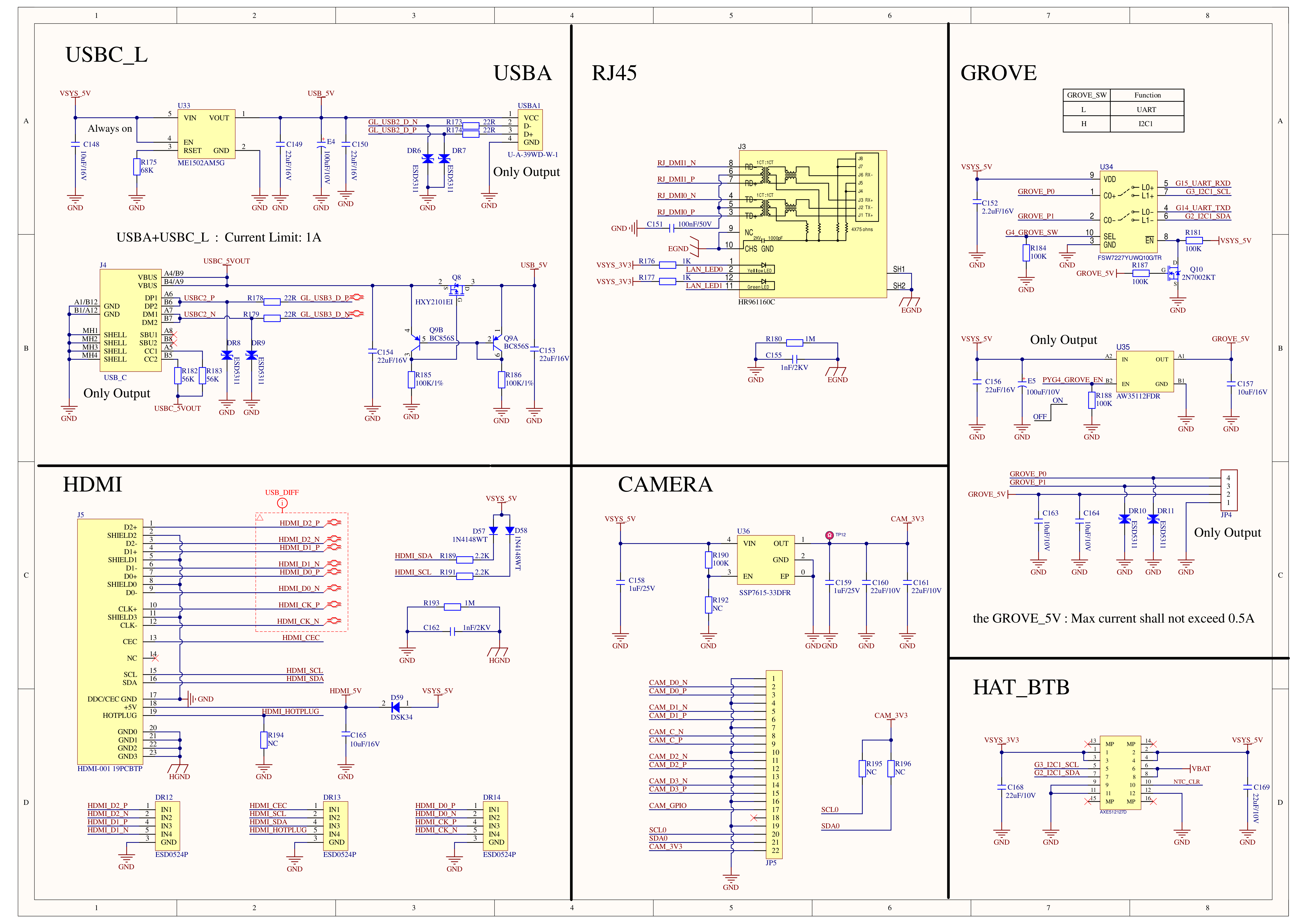
The left USB-C and USB-A ports are host data ports provided by the onboard hub. They share a 1 A current limit; the USB-A 5 V rail is output-only.
RJ45 connects to the onboard USB Ethernet chip and includes link-status LEDs.
The Grove interface switches between UART and I2C1. The schematic specifies that a low GROVE_SW selects UART and a high level selects I2C. G17_GROVE_EN controls Grove 5 V, with a maximum output current of 0.5 A.
# Show the current Grove interface mode: 0 is UART, 1 is I2C
cat /sys/class/leds/grove_fun/brightness

# Show the current Grove 5 V state
cat /sys/class/leds/grove_5v_out/brightness

# Scan I2C1 in I2C mode
i2cdetect -y 1

# Show serial parameters in UART mode
stty -F /dev/ttyS0
The following commands switch the interface and power. Run them one at a time while the interface is idle:
# Switch to UART mode
echo 0 | sudo tee /sys/class/leds/grove_fun/brightness

# Switch to I2C mode
echo 1 | sudo tee /sys/class/leds/grove_fun/brightness

# Enable Grove 5 V
echo 1 | sudo tee /sys/class/leds/grove_5v_out/brightness

# Disable Grove 5 V
echo 0 | sudo tee /sys/class/leds/grove_5v_out/brightnessThe HDMI interface carries TMDS video, DDC, CEC, HPD hot-plug detection, and 5 V. Linux DRM creates a /sys/class/drm/card*-HDMI-*/ directory for it.
# List DRM devices
ls -l /dev/dri

# List HDMI connectors
ls -d /sys/class/drm/*HDMI*

# Check whether HDMI is connected
cat /sys/class/drm/card0-HDMI-A-1/status

# Show supported HDMI resolutions
cat /sys/class/drm/card0-HDMI-A-1/modes

# Check whether HDMI is enabled
cat /sys/class/drm/card0-HDMI-A-1/enabled
DRM card and connector names may vary. Enumerate /sys/class/drm first, then read status, modes, and enabled. See src/platform/hdmi_service.cpp for a reference implementation and m5stack-linux-dtoverlays for the HDMI overlay.
The camera interface transfers images over MIPI CSI and configures the sensor over I2C0. CAM_3V3 supplies camera power. Linux manages CSI cameras through the media controller and libcamera.
# List video device nodes
ls -l /dev/video*

# List media-controller devices
ls -l /dev/media*

# Show the camera media graph
media-ctl -p

# List V4L2 cameras
v4l2-ctl --list-devices

# List formats supported by the camera
v4l2-ctl --device /dev/video0 --list-formats-ext

# List CSI cameras detected by libcamera
libcamera-hello --list-cameras

# Show the camera DMA heap
ls -l /dev/dma_heap/default_cma_region
Note
On Raspberry Pi, use libcamera as the primary camera interface. It handles device discovery, sensor configuration, ISP, and frame processing.