Python GUI to run capemon in standalone VM. Provides a subset of CAPE (Configuration And Payload Extraction) processing and results.
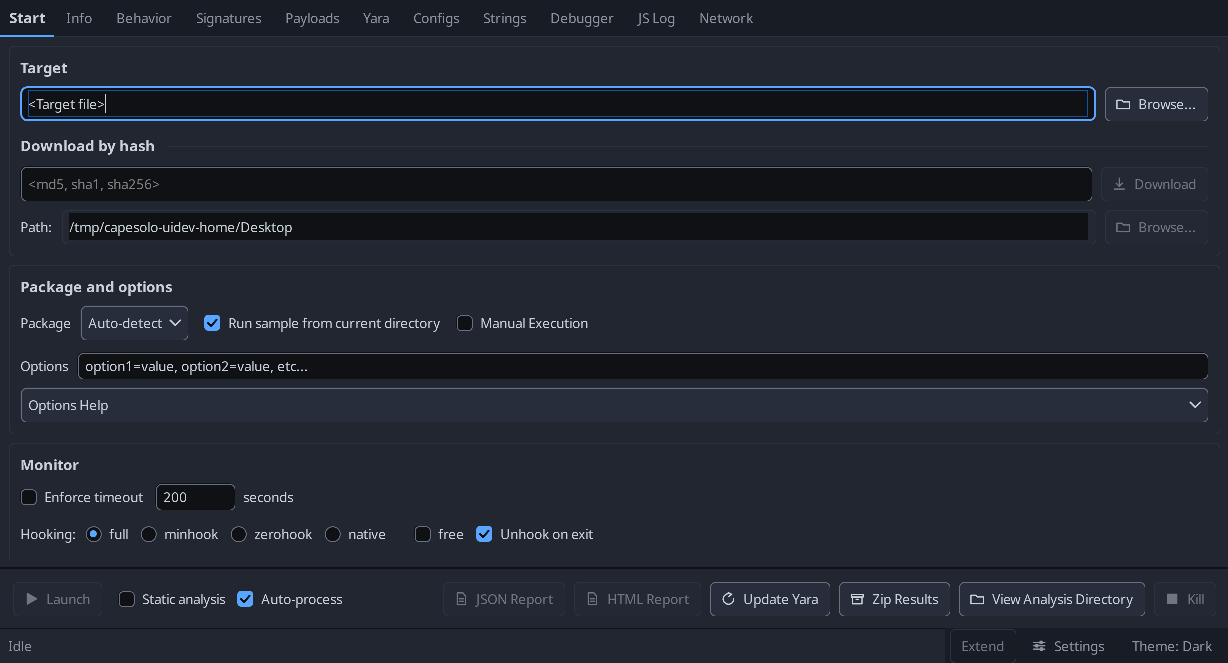
The Interface
- Tabs across the top: Start, then one per result view (Info, Behavior, Signatures, Payloads, Yara, Configs, Strings, Debugger, JS Log, Network).
- The Start tab groups target selection, package options, monitor and logging flags into cards; the actions (Launch, Kill, reports, Zip Results) stay pinned at the bottom of the window, so they do not scroll away.
- Dark and light themes, switched from the status bar at the bottom right or from Settings.
The choice is written to
cfg.iniand restored on the next run. - Process Payloads and Configs before Signatures. A signature only sees what is in the results when it runs, and several read the payload, config and yara data - running the pass first would quietly under-report rather than fail. The Signatures button stays disabled until those tabs have run and its tooltip says which are outstanding.
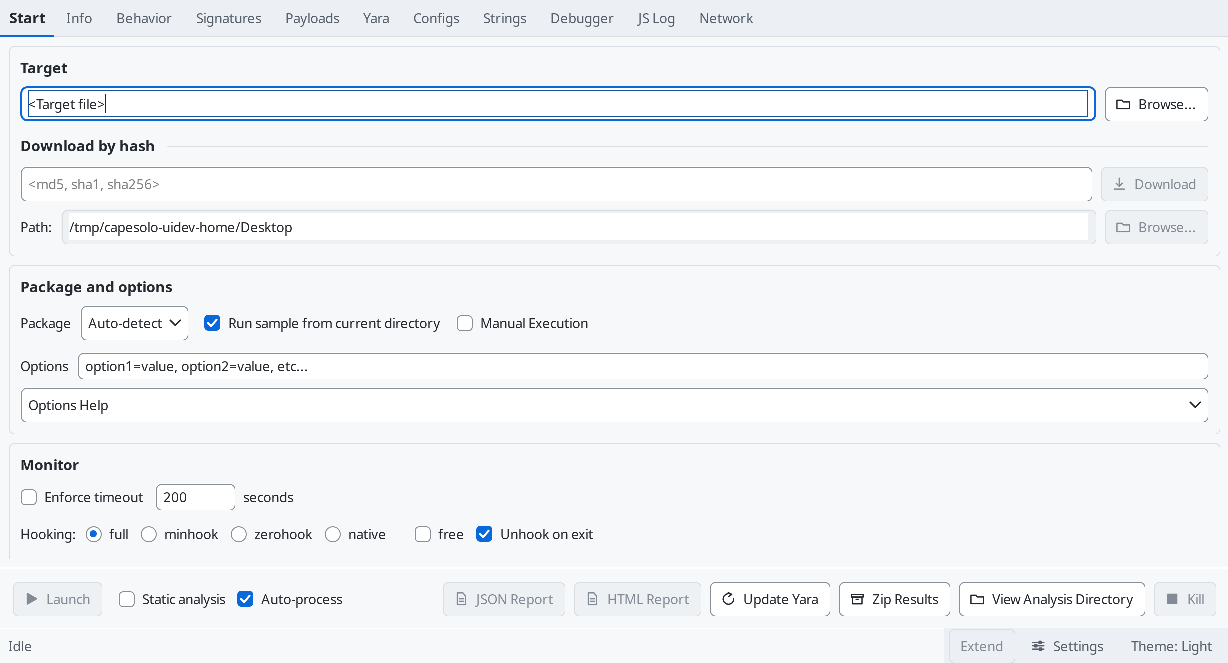
Working on the UI
-
tools/uidev/builds the real panels off screen and writes them to PNGs, so a layout change can be smoke-tested and screenshotted without launching an analysis. Seetools/uidev/README.md. -
The same scripts run in CI on every pull request, on a Windows runner, and upload the renders as an artifact.
-
Create a Windows 10 VM that's suitable for running malware.
- Use the CAPEv2 guest guide for configuration details.
- https://capev2.readthedocs.io/en/latest/installation/guest/index.html
-
Install Python in VM, tested on 64-bit Python versions 3.11, 3.12, and 3.12. Add Python to path.
-
Download and install both Microsoft Visual C++ Redistributables:
-
Install CAPEsolo.
- pip install CAPEsolo
-
Snapshot your VM.
Quick Start
- Open an administrator command window.
- Type capesolo to run.
Alternatively, create a shortcut to CAPEsolo.exe, which will be in the Scripts subdirectory of same location as your python.exe file.
- Under Advanced, check 'Run as administrator'
- An icon file is available in the CAPEsolo install folder under site-packages.
Analysis results are found in C:\Users\Public\CAPEsolo\analysis.
- Can be configured in C:\Users\Public\CAPEsolo\cfg.ini
- Settings there override the packaged defaults in python-path\site-packages\CAPEsolo\cfg.ini,
and survive
pip install --upgrade CAPEsolo, which overwrites the packaged copy. - Only include the keys you want to change; the rest fall back to the packaged defaults.
Community signatures
- CAPEsolo ships only its own signatures. CAPEv2 / CAPESandbox community signatures go in
C:\Users\Public\CAPEsolo\signatures (beside cfg.ini), unmodified. Update (below) can fill
its
communitysubfolder from https://github.com/CAPESandbox/community, or copy files there yourself. - Subfolders are scanned;
deprecatedandlinuxare skipped. Files added or edited are picked up on the next signature pass, with no restart. - A signature there replaces a shipped one with the same name. One of your own, outside
community, also beats a same-named one inside it. - A signature that needs a CAPEv2 module CAPEsolo does not have is skipped, and the analysis log names the missing module. One that reads a results section CAPEsolo does not produce (Suricata, for example) loads but never matches.
- Optional data files those signatures look for under CAPEv2's root (
extra/msft-public-ips.csv,data/dga.bloom) are read from C:\Users\Public\CAPEsolo.
YARA rules
- CAPEsolo ships its CAPE rules. Your own rules go in C:\Users\Public\CAPEsolo\yara, and
community rules go in its
communitysubfolder. Both are scanned alongside the CAPE rules. Where two files share a name:Desktop\customwins, then your folder, thencommunity, then the packaged rules. pip install --upgrade CAPEsoloputs back the packaged rules.
Update (Start tab)
- Asks what to download:
- YARA rules - CAPEsolo (ticked by default) and CAPEv2 rebuild the packaged rules (the CAPE rules and the monitor rules capemon uses in the guest) from whichever are ticked. Where both have a file, CAPEsolo's is used.
- YARA rules - Community replaces
yara\communitywith CAPESandbox/community'sdata/yara/CAPE. - Signatures - Community replaces
signatures\communitywith CAPESandbox/community'smodules/signatures/windowsandall.
- Your own files, and the Debugger tab's saved rule, are never touched. Everything is downloaded before anything is replaced, so a failed update keeps what was there.
- The same choices are available as
capesolo --update_yara capesolo,capev2,community(no value means capesolo),capesolo --update_signatures, and the MCP toolcapesolo_update_yara.
Reports (Start tab)
- Reports builds the JSON and/or HTML report (both ticked by default) from one pass over the analysis. Each is written to the Desktop and into the analysis directory.
Revert the VM after each analysis.
View a JSON Report (standalone)
tools/report_viewer.pyis a self-contained triage viewer for a CAPEsoloreport.jsonthat runs on any host with just Python - no CAPEsolo install and no pip dependencies (stdlib tkinter).python tools/report_viewer.py [path\to\report.json | path\to\bundle.zip]- A results bundle from Zip Results opens as-is: the report is read out of the zip in place, so a full bundle's payload bytes are never written to the machine doing the triage.
- With no argument it opens
%USERPROFILE%\Desktop\report.json(where CAPEsolo writes it); use File > Open to pick another report or bundle. - Triage tabs: Overview (verdict card - file hashes, detections, top signatures, config, counts, and whether anything was lost in capture), Capture (what the run stored and what it did not), Signatures (severity-sorted, colored, with per-process evidence), Processes (the process tree with per-process metadata), Network (DNS/HTTP/Hosts/Domains/Flows), Payloads (with yara hits and strings), Yara (every rule hit across every scanned file, with metadata, matched strings and offsets), and IOCs (aggregated, with Copy / Export CSV / Export text).
- The Search box (top bar) finds a value across signatures, network, payloads, configs, IOCs and strings, and jumps to the owning tab.
- A Raw JSON tab keeps the full tree for anything the triage tabs do not surface.
- Handles large reports: the file is read with a progress bar, the raw tree loads lazily (children on expand), and the detail panes are bounded, so it stays responsive on hundred-MB/GB reports. (A GB report still needs several GB of RAM to parse - inherent to Python's JSON.)
- Dark and light themes, matching the CAPEsolo GUI's palette. It follows the Windows
"app mode" setting by default (dark elsewhere); the button at the top right flips it for the
session, and
--theme dark|lightforces one. The menu bar and the native Open/error dialogs are drawn by Windows and stay light - tkinter cannot theme those. - Needs tkinter - bundled with the standard Windows/macOS Python; on Linux install
python3-tk.
AI Analysis (optional)
- The viewer can run Claude over a loaded report: a specialist per evidence tab, a lead-analyst verdict on Overview, and an interactive question loop. It is opt-in and optional - the viewer still has no required dependencies, and every tab above works without any of this.
- Enable it with one package and a key:
pip install anthropicset ANTHROPIC_API_KEY=sk-ant-...(or pass--api-key, or enter it in AI > Settings)- Without the package or the key, the AI panes say so and nothing else changes.
- Three ways to use it:
- GUI - the AI tab has one specialist per evidence tab (Signatures, Processes, Behavior, Network, JS Log, Payloads, Configs, Yara, Static, IOCs, Capture) plus an Ask pane. "Analyze all" runs every specialist and then writes a verdict card onto Overview. "Analyze tab" in the top bar runs the specialist for whichever tab you are reading.
- One-shot -
python report_viewer.py bundle.zip --ask "is this a loader or the final stage?" - Interactive -
python report_viewer.py bundle.zip --chat, or--analyze all/--analyze Networkto print findings headless.
- Options:
--model(default$ANTHROPIC_MODELorclaude-opus-5),--effort(low..max),--yesto skip the data-egress confirmation. Nothing is written to disk - the key and model live in the environment or in that session only. - What is sent: file names and hashes, signature text, process/registry activity, network endpoints, config fields and payload strings - a capped selection, with anything omitted declared to the model and shown in the pane. The sample and payload bytes are never sent (a report bundle contains none to begin with). You are asked to confirm once per session.
- Cost: a full run is ~11 calls. The case digest is sent once and cached, so later specialists re-read it at about a tenth of the input price; "Analyze all" shows a token and dollar estimate before it starts, and the status line reports actual spend afterwards.
- Answers are grounded in the report and say when the evidence does not support a conclusion. Malware content occasionally trips the model's safety classifier; the request carries a server-side fallback, and a decline is shown as one rather than as an empty pane.
Take Results To Another Machine
- Zip Results on the Start panel asks which archive to write:
- Report bundle (
Desktop\capesolo_report_<timestamp>.zip) -report.json,capture.json,analysis.logandfiles.json. No sample and no payload bytes, so it is safe to copy to your workstation. Open it directly withtools/report_viewer.py(see below); the viewer reads the report out of the zip without extracting anything. - Full bundle (
Desktop\capesolo_analysis_<timestamp>.zip) - the whole analysis directory, for restoring into a clean VM. It contains live malware; treat it accordingly.
- Report bundle (
- If there is no
report.jsonyet, Zip Results offers to generate one first - the report and the HTML report are now written into the analysis directory as well as the Desktop, which is what makes either bundle self-contained.
Know What Was Captured
- Every analysis writes
capture.jsonnext to the results: transfer counts from the ResultServer, which artifacts infiles.jsonare missing from disk, which arrived only partially or were truncated atupload_max_size, which files the analyzer never uploaded (too big or empty), and the caps that were in force. - Anything lost is logged and shown in the status bar when the run ends, carried in
report.jsonundercapture, and rendered on the Capture tab oftools/report_viewer.py. A payload that was stored only partially is flagged in the Payloads list rather than presented as whole.
Preserve Results From an Unstable VM
- If a sample makes the VM unusable after detonation, click Zip Results and choose the full
bundle to archive the whole analysis directory to
Desktop\capesolo_analysis_<timestamp>.zip. - To restore into a clean/reverted VM, copy that zip to
C:\Users\Public\CAPEsolo\restore.zip, then start CAPEsolo. On startup it extracts the zip into the analysis directory (only when that directory has no analysis yet) and renames itrestore.zip.doneso it restores once. - The result tabs then read the restored artifacts with no re-run - process each tab (Behavior, Yara, Configs, Signatures) or use the Reports button.
Download Samples by Hash
- The Start panel can fetch a sample by MD5/SHA1/SHA256 from VirusTotal or MalwareBazaar and use it as the analysis target. The source is auto-selected (VirusTotal first, then MalwareBazaar; MalwareBazaar requires a SHA256), based on which keys are configured.
- Turn it on in
cfg.ini(or via the Settings button): under[download]setenabled = true.directorysets where samples are saved (defaults to the user's Desktop). - API keys - where to get them:
- VirusTotal: file downloads require a VirusTotal Enterprise / Intelligence API key. The free community key can look up reports but cannot download files.
- MalwareBazaar: a free abuse.ch Auth-Key (create an account at auth.abuse.ch).
- API keys are stored ENCRYPTED, never in plaintext on the VM. You produce the encrypted blob
OFF the VM with
tools/encrypt_api_key.pyand paste it intocfg.ini. tools/encrypt_api_key.pyships in the CAPEsolo source repository undertools/. Run it on a trusted host (NOT the analysis VM); it only needspip install cryptography.python tools/encrypt_api_key.py- It prompts (hidden) for the API key and a password, and prints an encrypted blob.
- Encrypt every provider you use with the SAME password, so one prompt unlocks both.
- Install the blob in the guest by either:
- pasting it into
cfg.iniasapi_key_encunder[virustotal]and/or[malwarebazaar], or - setting the
CAPESOLO_VT_APIKEY_ENC/CAPESOLO_MB_APIKEY_ENCenvironment variables (env vars overridecfg.ini).
- pasting it into
- When downloads are enabled, CAPEsolo prompts once at startup for the password and decrypts the key in memory only; the plaintext key never touches the VM's disk. Enter the password, then snapshot the VM so it is ready on every revert.
MCP Server
- CAPEsolo includes an MCP server entrypoint for programmatic analysis workflows.
- Start it over stdio with
CAPEsolo-mcp, or serve it over HTTP to reach it from the host. - See mcp_server.md for transports,
cfg.iniconfiguration, the full tool list, and examples.
Interactive Debugger
- See interactive_debugger.md for the GUI debugger, and mcp_server.md for the MCP equivalent.
Headless Single-Run CLI
- CAPEsolo supports a non-MCP single-run mode that reuses the same backend job runner as the MCP server.
- Run one analysis and exit:
CAPEsolo --headless-analyze "C:\path\sample.exe"
- Optional flags:
--package <name>--options "key=value,key2=value2"--timeout <seconds>--enforce-timeout--headless-json--headless-html-report